
IP Addressing & DNS
- A network is a group of computers and computing devices connected together through communication channels, such as cables or wireless media.
- The computers connected over a network may be located in the same geographical area or spread across the world.
- A network is used to:
- Allow the connected devices to communicate with each other
- Enable multiple users to share devices over the network, such as music and video servers, printers and scanners.
- Share and manage information across computers easily.
- Most organizations have both an internal network and an Internet connection for users to communicate with machines and people outside the organization. The Internet is the largest network in the world and can be called “the network of networks”.
IP Addresses
Section titled “IP Addresses”- Devices attached to a network must have at least one unique network address identifier known as the IP (Internet Protocol) address. The address is essential for routing packets of information through the network.
- IP addresses are used to uniquely identify nodes across the internet. They are assigned through RIRs (Regional Internet Registries).
- Exchanging information across the network requires using streams of small packets, each of which contains a piece of the information going from one machine to another. These packets contain data buffers, together with headers which contain information about where the packet is going to and coming from, and where it fits in the sequence of packets that constitute the stream.
IPv4 and IPv6
Section titled “IPv4 and IPv6”-
There are two different types of IP addresses available: IPv4 (version 4) and IPv6 (version 6).
-
IPv4 is older and by far the more widely used, while IPv6 is newer and is designed to get past limitations inherent in the older standard and furnish many more possible addresses.
-
IPv4 uses 32-bits for addresses; there are only 4.3 billion unique addresses available. Furthermore, many addresses are allotted and reserved, but not actually used.
- IPv4 is considered inadequate for meeting future needs because the number of devices available on the global network has increased enormously in recent years.
-
IPv6 uses 128-bits for addresses; this allows for 3.4 X 10^38 unique addresses. If you have a larger network of computers and want to add more, you may want to move to IPv6, because it provides more unique addresses.
- However, it can be complex to migrate to IPv6; the two protocols do not always inter-operate well. Thus, moving equipment and addresses to IPv6 requires significant effort and has not been quite as fast as was originally intended.
-
One reason IPv4 has not disappeared is there are ways to effectively make many more addresses available by methods such as NAT (Network Address Translation).
-
NAT enables sharing one IP address among many locally connected computers, each of which has a unique address only seen on the local network. While this is used in organizational settings, it also used in simple home networks.
- For example, if you have a router hooked up to your Internet Provider (such as a cable system) it gives you one externally visible address, but issues each device in your home an individual local address.
IPv4 Address Types
Section titled “IPv4 Address Types”-
Unicast - An address associated with a specific host. It might be something like 140.211.169.4 or 64.254.248.193.
-
Network - An address whose host portion is set to all binary zeroes. Ex. 192.168.1.0. (the host portion can be the last 1-3 octets; here it is just the last octet).
-
Broadcast - An address to which each member of a particular network will listen. It will have the host portion set to all 1 bits, such as in 172.16.255.255 or 148.114.255.255 or 192.168.1.255. (the host portion is the last two octets in the first two cases, just the last one in the third case).
-
Multicast - An address to which appropriately configured nodes will listen. The address 224.0.0.2 is an example of a multicast address. Only nodes specifically configured to pay attention to a specific multicast address will interpret packets for that multicast group.
Reserved Addresses
Section titled “Reserved Addresses”Certain addresses and address ranges are reserved for special purposes.
Examples of Reserved Addresses
-
127.x.x.x - Reserved for the loopback (local system) interface, where 0 <= x <= 254. Generally, 127.0.0.1.
-
0.0.0.0 - Used by systems that do not yet know their own address. Protocols like DHCP and BOOTP use this address when attempting to communicate with a server.
-
255.255.255.255 - Generic broadcast private address, reserved for internal use. These addresses are never assigned or registered to anyone. They are generally not routable.
-
Other reserved addresses
Other examples of reserved address ranges include:
-
10.0.0.0 - 10.255.255.255
-
172.16.0.0 - 172.31.255.255
-
192.168.0.0 - 192.168.255.255
-
Etc.
Each of these has a purpose. For example, the familiar address range, 192.168.x.x is used only for local communications within a private network.
-
Decoding IPv4 Addresses
Section titled “Decoding IPv4 Addresses”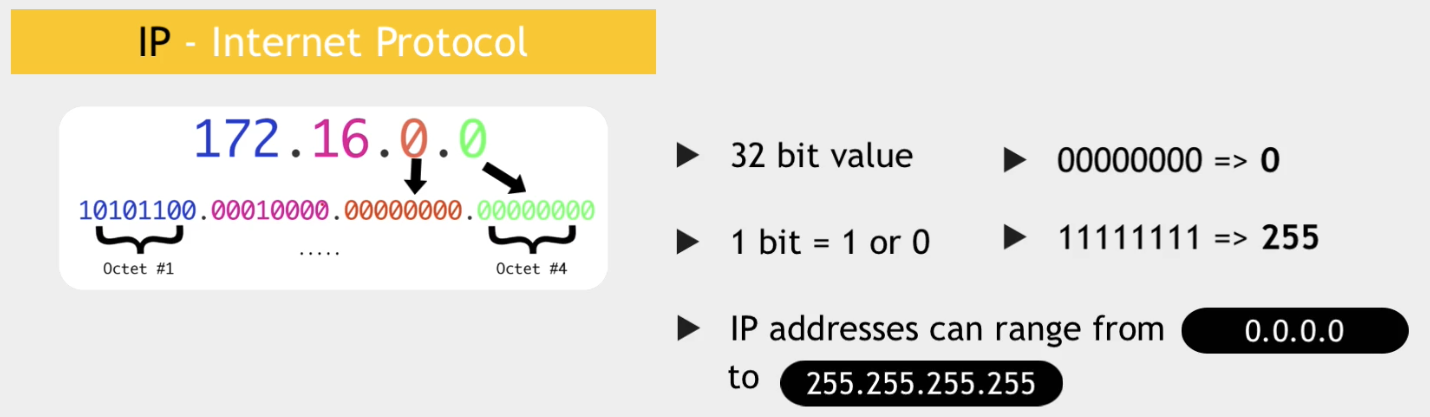
-
A 32-bit IPv4 address is divided into four 8-bit sections called octets.
-
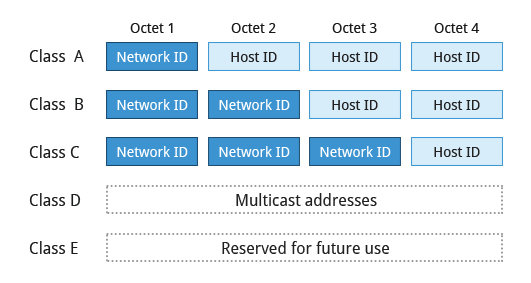
Network addresses are divided into five classes: A, B, C, D and E.
-
Classes A, B and C are classified into two parts: Network addresses (Net ID) and Host address (Host ID).
-
The Net ID is used to identify the network, while the Host ID is used to identify a host in the network.
-
Class D is used for special multicast applications (information is broadcast to multiple computers simultaneously) and Class E is reserved for future use.
| Network Class | Highest Order Octet Range | Notes |
|---|---|---|
| A | 1-127 | 128 networks, 16,772,214 hosts per network, 127.x.x.x reserved for loopback |
| B | 128-191 | 16,384 networks, 65,534 hosts per network |
| C | 192-223 | 2,097,152 networks, 254 hosts per network |
| D | 224-239 | Multicast addresses |
| E | 240-254 | Reserved address range |
Class A Network Addresses
Section titled “Class A Network Addresses”-
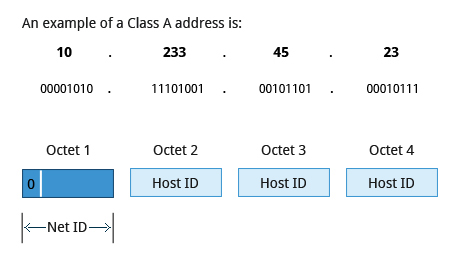
Class A addresses use the first octet of an IP address as their Net ID and use the other three octets as the Host ID.
-
The first bit of the first octet is always set to zero. So you can use only 7-bits for unique network numbers.
-
As a result, there are a maximum of 126 Class A networks available (the addresses 0000000 and 1111111 are reserved).
-
Each Class A network can have up to 16.7 million unique hosts on its network. The range of host address is from 1.0.0.0 to 127.255.255.255.
Class B Network Addresses
Section titled “Class B Network Addresses”-
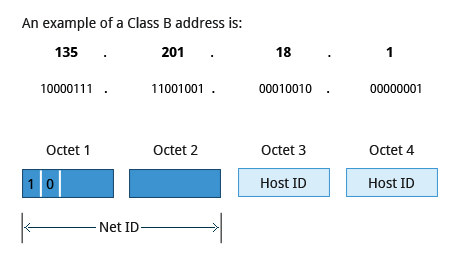
Class B addresses use the first two octets of the IP address as their Net ID and the last two octets as the Host ID.
-
The first two bits of the first octet are always set to binary 10, so there are a maximum of 16,384 (14-bits) Class B networks.
-
The first octet of a Class B address has values from 128 to 191.
-
The introduction of Class B networks expanded the number of networks but it soon became clear that a further level would be needed.
-
Each Class B network can support a maximum of 65,536 unique hosts on its network. The range of host addresses is from 128.0.0.0 to 191.255.255.255.
Class C Network Addresses
Section titled “Class C Network Addresses”-
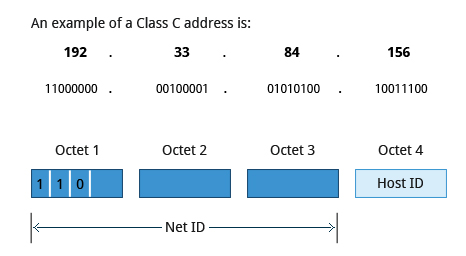
Class C addresses use the first three octets of the IP address as their Net ID and the last octet as their Host ID.
-
The first three bits of the first octet are set to binary 110, so almost 2.1 million (21-bits) Class C networks are available.
-
The first octet of a Class C address has values from 192 to 223. These are most common for smaller networks which don’t have many unique hosts.
-
Each Class C network can support up to 256 (8-bits) unique hosts. The range of host addresses is from 192.0.0.0 to 223.255.255.255.
Net masks
Section titled “Net masks”netmask is used to determine how much of the address is used for the network portion and how much for the host portion as we have seen. It is also used to determine network and broadcast addresses.
-
Class A addresses use 8 bits for the network portion of the address and 24 bits for the host portion of the address
-
Class B addresses use 16 bits for the network and 16 bits for the host
-
Class C addresses use 24 bits for the network and 8 bits for the host
-
Class D addresses are used for multicasting
-
Class E addresses are currently not used
Network Class Decimal Hex Binary A 255.0.0.0 ff:00:00:00 11111111 00000000 00000000 00000000 B 255.255.0.0 ff:ff:00:00 11111111 11111111 00000000 00000000 C 255.255.255.0 ff:ff:ff:00 11111111 11111111 11111111 00000000
We can calculate the network address by anding (logical and - &) the IP address with the netmask. We are interested in the network addresses because they define a local network which consists of a collection of nodes connected via the same media and sharing the same network address. All nodes on the same network can directly see each other.
Example:
172.16.2.17 ip address& 255.255.0.0 netmask----------------------------- 172.16.0.0 network addressIPv6 Address Types
Section titled “IPv6 Address Types”-
Unicast - A packet is delivered to one interface.
- Link-local: Auto-configured for every interface to have one. Non-routable.
- Global: Dynamically or manually assigned. Routable.
- Reserved for documentation.
-
Multicast - A packet is delivered to multiple interfaces.
-
Anycast - A packet is delivered to the nearest of multiple interfaces (in terms of routing distance).
-
IPv4-Mapped - An IPv4 address mapped to IPv6. For example, ::FFFF:a.b.c.d/96
IP Address Allocation
Section titled “IP Address Allocation”- Typically, a range of IP addresses are requested from your Internet Service Provider (ISP) by your organization’s network administrator.
- IP address you are given depends on the size of your network and expected growth needs.
- If NAT (Network Address Translation) is in operation, such as in a home network, you only get one externally visible address!
- You can assign IP addresses to computers over a network either manually or dynamically.
- Manual assignment adds static (never changing) addresses to the network.
- Dynamically assigned addresses can change every time you reboot or even more often; the Dynamic Host Configuration Protocol (DHCP) is used to assign IP addresses.
Name Resolution
Section titled “Name Resolution”-
Name Resolution is used to convert numerical IP address values into a human-readable format known as the hostname. For example,
104.95.85.15is the numerical IP address that refers to the hostnamewhitehouse.gov. -
There are several command line tools that can be used to resolve the IP address of a hostname:
Terminal window [dig | host | nslookup] linuxfoundation.org -
dig: generates the most information and has many options -
host: more compact -
nslookup: older and not recommended; can have wrong answers, especially with DNSSEC.
dig is the newest and the others are sometimes considered deprecated, but the output for host is the easiest to read and contains the basic information.
One sometimes also requires reverse resolution: converting an IP address to a host name.
Using dig
Section titled “Using dig”The dig utility gives the most correct answer among shipped tools.
- Default output is often too verbose for simple tasks or scripting
- Can view entire resolution chain
- Can view and verify DNSSEC operation
Some useful options:
+traceCheck the entire path, from the root servers (by default)t [record type]specify the record (includingA,TXT,CNAME,MX)
Here is an example of using dig with the default address lookup behavior:
dig linuxfoundation.org; <<>> DiG 9.16.27-Debian <<>> linuxfoundation.org;; global options: +cmd;; Got answer:;; ->>HEADER<<- opcode: QUERY, status: NOERROR, id: 54765;; flags: qr rd ra; QUERY: 1, ANSWER: 1, AUTHORITY: 0, ADDITIONAL: 1
;; OPT PSEUDOSECTION:; EDNS: version: 0, flags:; udp: 4096;; QUESTION SECTION:;linuxfoundation.org.       IN            A
;; ANSWER SECTION:linuxfoundation.org.    524    IN    A      3.13.31.214
;; Query time: 3 msec;; SERVER: 10.139.1.1#53(10.139.1.1);; WHEN: Sun May 07 13:40:00 EDT 2023;; MSG SIZE rcvd: 64
This is showing a lookup for an A record (IPv4), flags, transport, and timing information.
Let’s try with reverse resolution and make it much less verbose:
dig -x 1.1.1.1 +shortone.one.one.one.Getting and Setting the Hostname
Section titled “Getting and Setting the Hostname”-
You can view your system’s hostname simply by typing
hostnamewith no argument. -
The special hostname localhost is associated with the IP address
127.0.0.1and describes the machine you are currently on (which normally has additional network-related IP addresses). -
This can be done in either a static fashion using the
/etc/hostsfile, or dynamically using DNS servers. -
The hostname is simply a label to distinguish a networked device from other nodes. Historically, this has also been called a nodename.
-
For DNS purposes, hostnames are appended with a period (dot) and a domain name, so that a machine with a hostname of antje could have a fully qualified domain name (FQDN) of
antje.linuxfoundation.org. -
The hostname is generally specified at installation time, but can be changed at any time later.
-
Any user can get the hostname with (command and output below):
Terminal window hostnamefedora#Changing hostname requires root privilege (command and output below):sudo hostname KDEKDE
The current value is always stored in /etc/hostname on most Linux distributions. To do this persistently so changes survive a reboot use the hostnamectl command, part of the systemd infrastructure:
sudo hostnamectl set-hostname KDEHistorically, making persistent changes involved changing configuration files in the etc directory tree. On Red Hat-based systems this was /etc/sysconfig/network, on Debian-based systems this was /etc/hostname and on SUSE-based systems it was /etc/HOSTNAME. However, one should use the hostnamectl command on modern systems:
hostnamectlStatic hostname: c8        Icon name: computer-desktop          Chassis: desktop        Machine ID: ce0c82382a8a4c80bbd6931a917a2f1c          Boot ID: 94207b3fbd9b4891b9a94e21762a47cb  Operating System: Red Hat Enterprise Linux 8.2 (Ootpa) \          dracut-049-70.git20200228.el8 (Initramfs)            Kernel: Linux 5.11.6      Architecture: x86-64
#To see a usage message, type the following command:
hostnamectl --helphostnamectl [OPTIONS...] COMMAND ...Query or change system hostname-h --help              Show this help  --version           Show package version  --no-ask-password   Do not prompt for password-H --host=[USER@]HOST  Operate on remote host-M --machine=CONTAINER Operate on local container  --transient         Only set transient hostname  --static            Only set static hostname  --pretty            Only set pretty hostname
Commands:  status               Show current hostname settings  set-hostname NAME    Set system hostname  set-icon-name NAME   Set icon name for host  set-chassis NAME     Set chassis type for host  set-deployment NAME  Set deployment environment for host  set-location NAME    Set location for host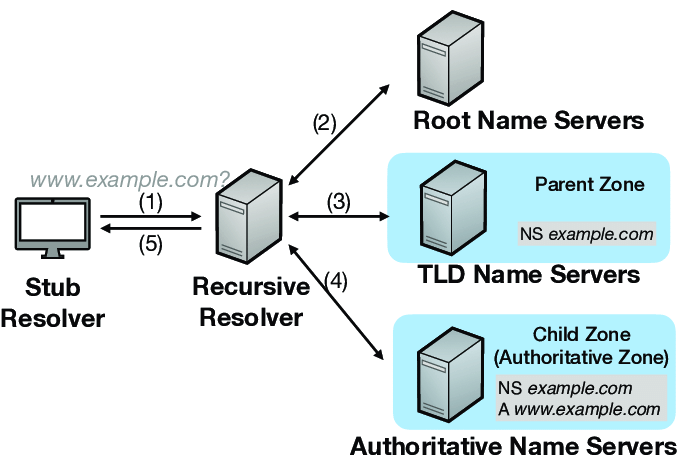
If name resolution cannot be done locally using the /etc/hosts file, then the system will query a DNS (Domain Name Server) server.
DNS is dynamic and consists of a network of servers which a client uses to look up names. The service is distributed; any one DNS server has only information about its zone of authority; however, all of them together can cooperate to resolve any name.
The machine’s usage of DNS is configured in the /etc/resolv.conf file, which historically has looked like:
search example.com aps.orgnameserver 192.168.1.1nameserver 8.8.8.8which:
- Can specify particular domains to search.
- Defines a strict order of nameservers to query.
- May be manually configured or updated from a service such as DHCP (Dynamic Host Configuration Protocol).
Most modern systems will have an /etc/resolv.conf file generated automatically, such as:
# Generated by NetworkManager192.168.1.1which was generated by Network Manager invoking DHCP on the primary network interface.
Networking Problem Troubleshooting
Section titled “Networking Problem Troubleshooting”Network problems can be caused either by software or hardware, and can be as simple as is the device driver loaded, or is the network cable connected. If the network is up and running but performance is terrible, it really falls under the banner of performance tuning, not troubleshooting. The problems may be external to the machine, or require adjustment of the various networking parameters, including buffer sizes, etc.
The following items need to be checked when there are issues with networking:
- IP configuration : Use
ifconfigoripto see if the interface is up, and if so, if it is configured - Network Driver : If the interface cannot be brought up, maybe the correct device driver for the network card(s) is not loaded. Check with
lsmodif the network driver is loaded as a kernel module, or by examining relevant pseudofiles in/procand/sys, such as/proc/interruptsor/sys/class/net. - Connectivity : Use
pingto see if the network is visible, checking for response time and packet loss.traceroutecan follow packets through the network, whilemtrcan do this in a continuous fashion. Use of these utilities can tell you if the problem is local or on the Internet. - Default gateway and routing configuration : Run
route -nand see if the routing table make sense - Hostname resolution : Run
digorhoston a URL and see if DNS is working properly.