
CLI Basics
Why Use the Command Line?
Section titled “Why Use the Command Line?”The command line interface (CLI) provides the following advantages over a GUI:
- No GUI overhead - runs well on headless servers with minimal resources
- Virtually every task can be accomplished from the terminal
- Scripts automate often-used (or easy-to-forget) procedures
- Sign into remote machines securely over any network
- Graphical applications can be launched directly from the CLI
- CLI interface is consistent across all Linux distributions - GUI tools vary
Terminal Emulators
Section titled “Terminal Emulators”A terminal emulator simulates a standalone terminal within a window on a graphical desktop. Common choices:
| Emulator | Notes |
|---|---|
gnome-terminal | Default on GNOME |
konsole | Default on KDE |
alacritty | GPU-accelerated, fast |
kitty | Feature-rich, GPU-accelerated |
terminator | Split-pane support |
xterm | Lightweight, minimal |
ghostty | New, very fast |
Virtual Terminals (VTs)
Section titled “Virtual Terminals (VTs)”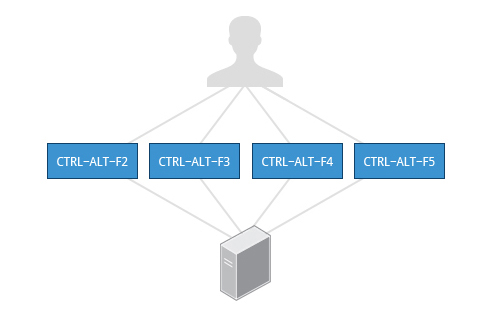
Virtual Terminals (VTs) are console sessions that use the entire display and keyboard outside of a graphical environment. There can be multiple active virtual terminals, but only one is visible at a time - unlike graphical terminal windows, which can all be open simultaneously.
- One VT is reserved for the graphical environment (VT7 on Ubuntu, VT1 on RHEL/openSUSE)
- Switch between VTs:
CTRL-ALT-F1throughCTRL-ALT-F6(orALT-Fnif already in a VT) - VTs are invaluable when the graphical desktop freezes - switch to a text VT to investigate and recover
Starting/Stopping the GUI
Section titled “Starting/Stopping the GUI”sudo systemctl stop gdm # stop GNOME (or lightdm on Ubuntu <18.04)sudo telinit 3 # drop to multi-user text modesudo systemctl start gdm # restart GUIsudo telinit 5 # return to graphical modeCommand Anatomy
Section titled “Command Anatomy”Most input lines have 3 basic elements:
command [options] [arguments]- Command - the program to execute (e.g.,
ls,grep,find) - Options - modify behavior; start with
-(short) or--(long):-l,--all - Arguments - what the command operates on: a filename, a path, a search pattern
Many commands have no options, no arguments, or neither. The order matters.
sudo - Superuser Access
Section titled “sudo - Superuser Access”sudo (SuperUser DO) lets you run commands with the security privileges of another user - usually root. It’s the preferred way to administer a Linux system without logging in as root.
Setting Up sudo (if not configured)
Section titled “Setting Up sudo (if not configured)”# 1. Switch to root using su (since sudo isn't set up yet)suPassword:#
# 2. Create a sudoers drop-in file for your userecho "student ALL=(ALL) ALL" > /etc/sudoers.d/student
# 3. Fix permissions (required by some distributions)chmod 440 /etc/sudoers.d/studentUsing sudo
Section titled “Using sudo”sudo dnf update # run as rootsudo -i # open a root shellsudo -u postgres psql # run as a different user (postgres)sudo !! # re-run last command with sudosudo prompts for your own password (not root’s). After entry, it’s cached for a configurable window (default: 5–15 minutes depending on distro).
Basic Operations
Section titled “Basic Operations”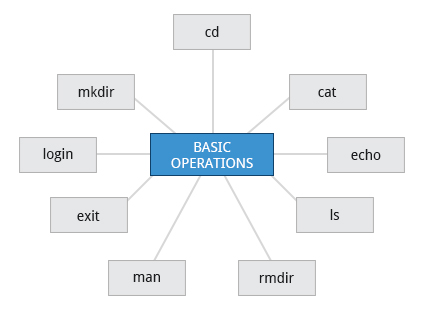
Login / Logout
Section titled “Login / Logout”When logging into a text terminal, you’ll see a login: prompt. Your password is never displayed (not even asterisks) to prevent shoulder-surfing.
Shutdown and Reboot
Section titled “Shutdown and Reboot”Always shut down properly - abrupt power cuts can corrupt filesystems.
sudo shutdown -h now # halt immediatelysudo shutdown -h 10:00 "Scheduled maintenance" # notify and halt at 10:00sudo shutdown -r now # reboot immediatelysudo reboot # equivalent to shutdown -r nowsudo poweroff # equivalent to shutdown -h nowsudo halt # similar to poweroffGetting Help
Section titled “Getting Help”man - The System Manual
Section titled “man - The System Manual”man is the most-used Linux documentation tool. It displays formatted reference pages that ship with most programs.
man ls # manual for lsman 8 useradd # section 8 (admin commands) for useraddman -f ls # which sections have a 'ls' page (= whatis ls)man -k sysctl # find all pages mentioning sysctl (= apropos sysctl)man -w ls # show the file path of the man pageMan Page Sections
Section titled “Man Page Sections”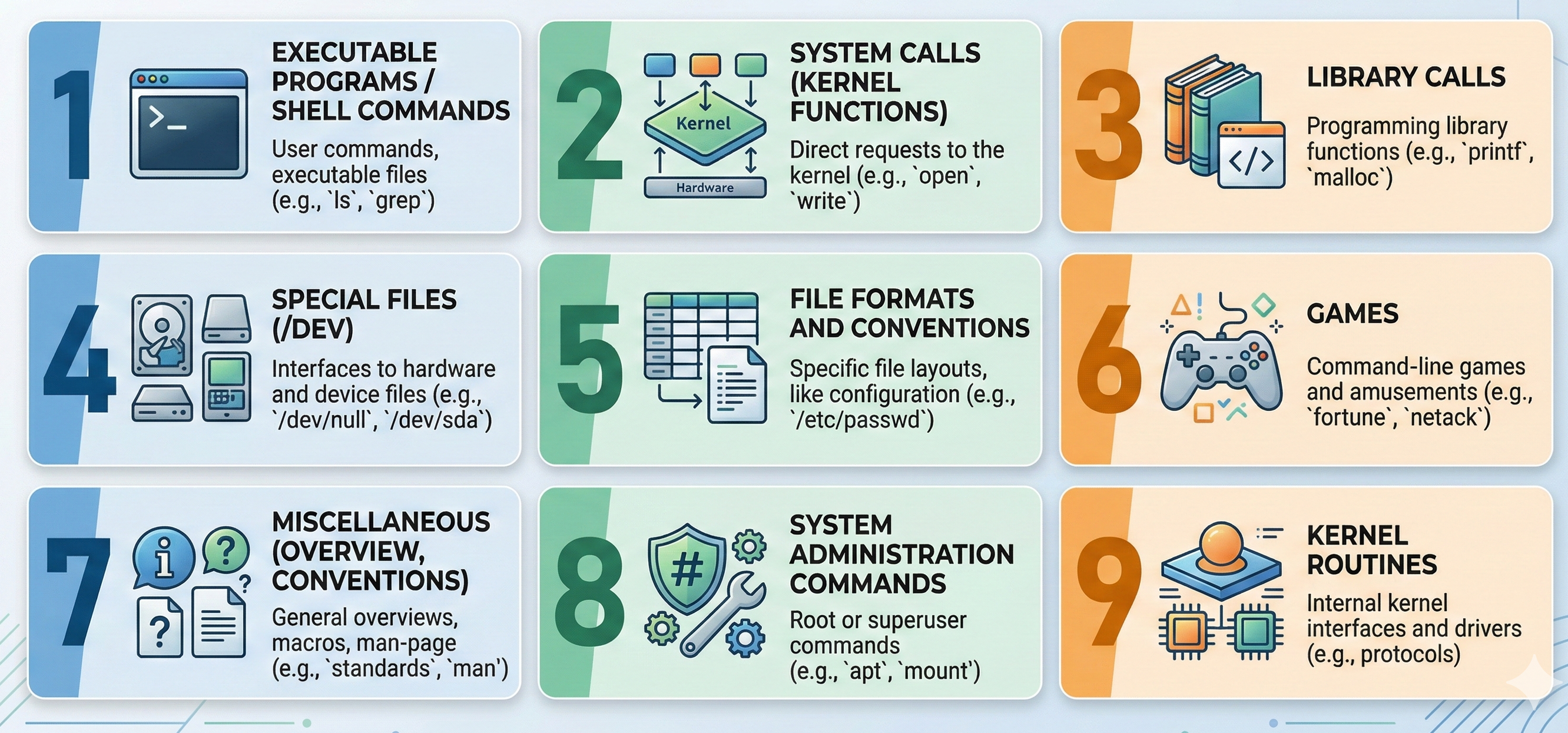
Man pages are divided into sections, each containing a different type of information:
| Section | Contents |
|---|---|
| 1 | Executable programs / shell commands |
| 2 | System calls (kernel functions) |
| 3 | Library calls |
| 4 | Special files (/dev) |
| 5 | File formats and conventions (/etc/passwd) |
| 6 | Games |
| 7 | Miscellaneous (overview, conventions) |
| 8 | System administration commands (usually root) |
| 9 | Kernel routines |
man -f intro# intro (1)  - introduction to user commands# intro (2)  - introduction to system calls# ...
man 1 intro    # user commands introman 8 intro    # admin commands intro
whatis and apropos
Section titled “whatis and apropos”whatis ls # same as man -f ls - one-line descriptionapropos sysctl # same as man -k - search all man pages for keywordGNU Info
Section titled “GNU Info”The GNU Info system is the GNU project’s preferred alternative to man. It uses hyperlinked sections (nodes) - like documentation structured for browsing rather than reference pages.
info coreutils # browse the coreutils info documentinfo ls # info page for ls (often more detailed than man)Inside info:
| Key | Action |
|---|---|
n | Next node |
p | Previous node |
u | Up one level |
Enter | Follow link |
q | Quit |
Nodes (sections) may contain menus and linked subtopics. Items outside a menu are marked with :: at the end of their name.
Customizing the Shell Prompt (PS1)
Section titled “Customizing the Shell Prompt (PS1)”The PS1 variable controls the shell prompt string.
echo $PS1 # see current promptPS1="\u@\h \$ " # user@hostname $ (use backslash escapes)Common PS1 escape sequences:
| Sequence | Output |
|---|---|
\u | Current username |
\h | Hostname (short) |
\H | Full hostname |
\w | Current working directory |
\W | Basename of current directory |
\$ | # if root, $ otherwise |
\t | Current time (HH:MM:SS) |
To make permanent, add to ~/.bashrc:
export PS1='\u@\h:\w\$ 'Standard File Streams (stdin / stdout / stderr)
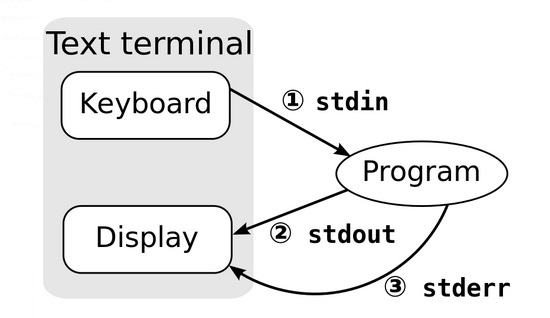
Section titled “Standard File Streams (stdin / stdout / stderr)”Every process starts with three open file streams:
| Name | Symbol | File Descriptor | Default |
|---|---|---|---|
| Standard input | stdin | 0 | Keyboard |
| Standard output | stdout | 1 | Terminal |
| Standard error | stderr | 2 | Terminal |
The file descriptor number is how the shell references these streams when redirecting. Any additional files opened by the process start at fd 3.
I/O Redirection
Section titled “I/O Redirection”command < input-file # redirect stdin from filecommand > output-file # redirect stdout to file (overwrite)command >> output-file # redirect stdout to file (append)command 2> error-file # redirect stderr to filecommand > allout 2>&1 # redirect both stdout and stderr to filecommand >& allout # bash shorthand for the abovecommand > /dev/null 2>&1 # suppress all output (stdout and stderr)The UNIX/Linux philosophy is to have many simple, short programs that cooperate to produce complex results - rather than one complex program with many modes. The | (pipe) operator is the glue:
command1 | command2 | command3This is a pipeline. Key properties:
command2andcommand3start operating on data beforecommand1finishes - no waiting, no temporary files- On multi-core systems, pipeline stages run concurrently - better CPU utilization
- No disk I/O between stages - disk is almost always the slowest bottleneck
# Practical examplesps aux | grep nginx # find nginx processescat /var/log/syslog | grep ERROR | tail -20 # last 20 errorsls -lSh /usr | head -10 # 10 largest files in /usrdu -sh /var/* | sort -rh | head -5 # top 5 largest dirs in /var