
Files & Directories
Navigating the File System
Section titled “Navigating the File System”When you first log into a system or open a terminal, the default directory is your home directory. You can print its exact path with echo $HOME.
| Command | Result |
|---|---|
pwd | Print present working directory |
cd ~ or cd | Change to home directory (~ = tilde = shortcut) |
cd .. | Change to parent directory |
cd - | Change to previous directory (toggle) |
cd /usr/bin | Change using absolute path |
Absolute vs. Relative Paths
Section titled “Absolute vs. Relative Paths”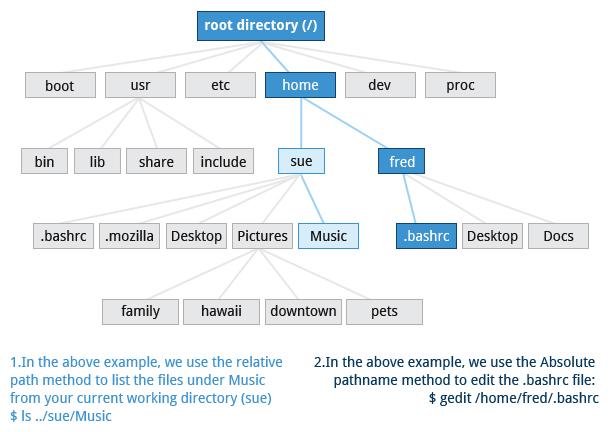
There are two ways to identify filesystem paths:
- Absolute pathname - begins with
/(root); follows the tree from root. Always works regardless of where you are. - Relative pathname - starts from the present working directory; never begins with
/
# Both change from home to /usr/bin:cd /usr/bin             # absolute - unambiguouscd ../../usr/bin        # relative - depends on where you are now
# Multiple slashes are legal but collapsed:# ////usr//bin  ==  /usr/bin
Useful special paths:
.- the present directory..- the parent directory~- your home directory
Exploring with ls and tree
Section titled “Exploring with ls and tree”ls # list current directory contentsls -l # long format: permissions, links, owner, group, size, datels -la # include hidden files (dot-files)ls -lh # human-readable file sizes (K, M, G)ls -lS # sort by size, largest firstls -lt # sort by modification time (mtime), newest firstls -ltu # sort by access time (atime), newest firstls -ltc # sort by metadata change time (ctime), newest firstls -lR # recursive - list all subdirectoriesls -ali # include inode numbersls -ald # list directories themselves, not their contentsls -n # show UID/GID numbers instead of namestree # visual directory treetree -d # directories onlyUnderstanding ls -l Output
Section titled “Understanding ls -l Output”-rw-r--r-- 1 root testuser 42118 Jun 11 07:18 File-01.txt│ │ │ │ │ │ ││ │ │ │ │ │ └─ filename│ │ │ │ │ └─ last modification time│ │ │ │ └─ size in bytes│ │ │ └─ group│ │ └─ owner│ └─ hard link count└─ permissions (type + user + group + other)File Timestamps - atime, mtime, ctime
Section titled “File Timestamps - atime, mtime, ctime”Linux tracks three timestamps per file:
| Timestamp | Name | Updated when |
|---|---|---|
atime | Access time | File is read |
mtime | Modification time | File content changes |
ctime | Change time | Metadata changes (permissions, ownership, location) |
This distinction matters when you use find or ls sorting options:
touch theNewestFile # creates file → updates atime AND ctimeecho "hello" > file-02 # write content → updates mtime AND ctimechmod 444 file-01 # change permissions → updates ctime onlyDirectory History Stack
Section titled “Directory History Stack”pushd /var/log # push current dir to stack, cd to /var/logpushd /etc # push /var/log, cd to /etcdirs # show directory stackpopd # pop stack → returns to /var/logpopd # pop stack → returns to original directoryWorking with Files and Directories
Section titled “Working with Files and Directories”Locating Programs
Section titled “Locating Programs”which diff # exact location of the binarywhereis diff # binary + man page + source# diff: /usr/bin/diff /usr/share/man/man1/diff.1.gzwhich searches $PATH. whereis casts a wider net, searching standard system directories.
Viewing File Contents
Section titled “Viewing File Contents”| Command | Best for |
|---|---|
cat file | Short files; printing to stdout |
tac file | Same, but lines in reverse order |
less file | Large files; scroll up/down, search with / |
head -n 20 file | First 20 lines (default: 10) |
tail -n 20 file | Last 20 lines (default: 10) |
tail -f file | Follow a growing file in real-time (perfect for logs) |
# Common workflowsgrep ERROR /var/log/syslog | tail -50 # last 50 errorstail -f /var/log/nginx/access.log # live request monitoringcat file1 file2 > combined.txt # concatenate two filesCreating and Modifying Files
Section titled “Creating and Modifying Files”touch newfile # create empty file (or update timestamps if exists)touch -t 12091600 myfile # set timestamp to Dec 9, 4:00pm
# Interactive write with cat:cat > newfile # type content, Ctrl-D to savecat >> existingfile # append to existing filecat > newfile << EOF # heredoc style (type until EOF line)Hello worldEOFCreating and Removing Directories
Section titled “Creating and Removing Directories”mkdir sampdir # create directorymkdir -p parent/child{01..10} # create parent + 10 children at oncemkdir testdir1 testdir2 testdir3 # multiple at once
rmdir emptydir # remove empty directory onlyrm -rf mydir # recursively remove dir and all contentsMoving, Renaming, and Removing Files
Section titled “Moving, Renaming, and Removing Files”mv file.txt newname.txt # renamemv file.txt /tmp/ # move to directorymv file.txt /tmp/newname.txt # move and rename in one step
rm file.txt # remove filerm -f file.txt # force remove (no error if missing)rm -i *.log # interactive - confirm each deletionSearching for Files
Section titled “Searching for Files”locate - Fast Database Search
Section titled “locate - Fast Database Search”locate uses a pre-built database for instant searches - much faster than find for simple lookups.
locate zip # find all paths containing "zip"locate zip | grep bin # filter to paths with both "zip" and "bin"sudo updatedb # manually refresh the database (auto-runs daily)find - Real-Time Search
Section titled “find - Real-Time Search”find recursively walks the filesystem in real time. Default path is the current directory.
# Basic searchfind /usr -name gcc                      # find files named "gcc" under /usrfind /usr -type d -name gcc              # only directoriesfind /usr -type f -name gcc              # only regular filesfind . -name "*.swp"                     # find by pattern
# By timefind / -ctime 3                          # ctime changed exactly 3 days agofind / -mtime -7                         # modified within last 7 daysfind / -mmin -60                         # modified within last 60 minutes
# By sizefind / -size +10M                        # files larger than 10 MBfind / -size 0                           # empty files
# Execute a command on resultsfind . -name "*.swp" -exec rm {} ';' # delete all .swp filesfind . -name "*.log" -ok rm {} ';' # interactive: confirm before each delete-execruns the command immediately on every match-okis like-execbut prompts for confirmation - good for testing dangerous commands{}is replaced with the matched filename';'terminates the-execcommand (single-quoted to protect from shell)
Wildcards
Section titled “Wildcards”Used in shell globbing (filename pattern matching) - not the same as regex:
| Wildcard | Matches |
|---|---|
? | Any single character |
* | Any string of characters (including empty) |
[set] | Any single character in the set: [adf] |
[!set] | Any character NOT in the set |
ls ba?.out # three-letter filename starting with "ba", ending in ".out"ls *.log # all files ending in ".log"ls file[0-9].txt # file0.txt through file9.txtrm temp[!0-9]* # remove files starting with temp NOT followed by a digitHard and Soft (Symbolic) Links
Section titled “Hard and Soft (Symbolic) Links”The ln utility creates links - additional name entries pointing to the same data.
Hard Links
Section titled “Hard Links”ln file1 file2ls -li file1 file2
# 49302296 -rw-r--r-- 2 student student 0 Oct 24 2024 file1# 49302296 -rw-r--r-- 2 student student 0 Oct 24 2024 file2The -i flag shows inode numbers. Both files have the same inode (49302296) - they are the same file, just two name entries. The 2 in the link count column means two hard links point to this inode.
Key properties of hard links:
- Same inode, same data, different names
- Deleting
file1leavesfile2intact - the data is removed only when the last link is deleted - Cannot span filesystems or partitions
- Cannot link to directories (prevents loops)
Soft (Symbolic) Links
Section titled “Soft (Symbolic) Links”ln -s file1 file3ls -li file1 file3
# 49302296 -rw-r--r-- 2 student student 0 Oct 24 2024 file1# 49302397 lrwxrwxrwx 1 student student 5 Oct 24 2024 file3 -> file1file3 has a different inode - it is a separate filesystem object that simply points to file1. The l type indicator and -> file1 in the listing confirm it’s a symlink.
Key properties of soft links:
- Different inode from target; tiny amount of storage (stores the target path)
- Can span filesystems, partitions, and even network mounts
- Can point to directories
- If the target is deleted or moved, the symlink becomes dangling (broken)
ln -s /var/log/nginx/access.log ~/nginx-access.log # shortcut to long pathln -s /opt/myapp/bin/myapp /usr/local/bin/myapp # put binary in PATH