
Filesystems & Mounting
Everything Is a File
Section titled “Everything Is a File”In Linux (and all UNIX-like systems), it is often said: “Everything is a file”. Whether you are dealing with data files, directories, network sockets, hardware devices, or kernel data structures - you interact with them through the same I/O operations (open, read, write, close).
This unifying abstraction simplifies programming enormously: a program that reads from stdin works equally well reading from a keyboard, a file, a network socket, or a pipe. The filesystem provides the consistent interface.
Virtual Filesystem (VFS)
Section titled “Virtual Filesystem (VFS)”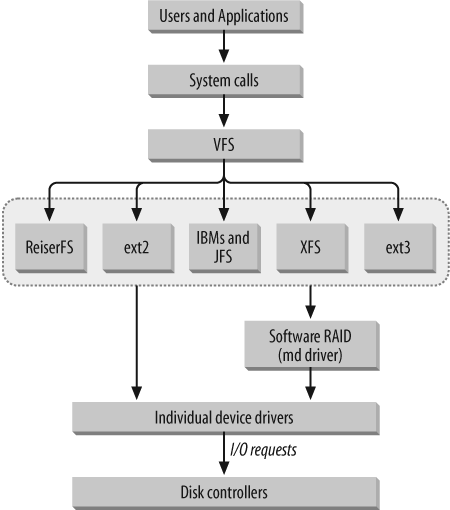
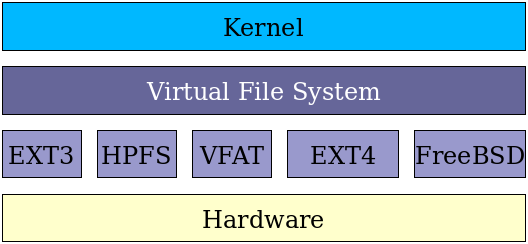
The Virtual Filesystem (VFS) is a kernel abstraction layer that sits between applications and the actual filesystem implementations. When an application calls open(), read(), or write(), it talks to the VFS - not directly to ext4, XFS, or any other specific filesystem.
The VFS translates generic I/O calls into filesystem-specific code. This means:
- An application doesn’t need to know if a file is on ext4, NFS, tmpfs, or a USB drive formatted as VFAT
- Network filesystems (NFS, CIFS) are handled transparently - they look like local directories
- Linux can support more filesystem varieties than any other OS because adding new filesystem support only requires implementing the VFS interface
Filesystem Types
Section titled “Filesystem Types”Linux Native
Section titled “Linux Native”| Filesystem | Max File | Max Volume | Journaling | Notes |
|---|---|---|---|---|
| ext4 | 16 TB | 1 EB | Yes | Default on most distros; backward compatible with ext3/ext2 |
| XFS | 8 EB | 8 EB | Yes | High-performance; great for large files; default on RHEL |
| Btrfs | 16 EB | 16 EB | Yes (CoW) | Copy-on-write; built-in snapshots and RAID |
| ext3 | 2 TB | 4 TB | Yes | Predecessor to ext4 |
| ext2 | 2 TB | 4 TB | No | No journal; long fsck on crash |
Non-Linux / Cross-Platform
Section titled “Non-Linux / Cross-Platform”| Filesystem | Origin | Use case |
|---|---|---|
| NTFS | Windows | Required for Windows dual-boot |
| FAT/VFAT/exFAT | Windows/DOS | USB drives, memory cards; universal compatibility |
| HFS+ | macOS | Mac drives |
| JFS | IBM | Older; still used |
Special Purpose
Section titled “Special Purpose”| Filesystem | Mount Point | Purpose |
|---|---|---|
| tmpfs | Anywhere | RAM-backed; cleared on reboot; used for /tmp, /run |
| proc | /proc | Kernel data structures and tunables |
| sysfs | /sys | Device tree, hardware info |
| devtmpfs | /dev | Device nodes managed by kernel+udev |
| debugfs | /sys/kernel/debug | Kernel debugging interfaces |
| squashfs | Anywhere | Read-only compressed; Live ISOs, snap packages |
Journaling Explained
Section titled “Journaling Explained”Journaling filesystems (ext4, XFS, Btrfs, JFS) recover from crashes or ungraceful shutdowns with little or no corruption:
- Operations are grouped into transactions that must complete atomically - all or nothing
- A journal (log) records transactions before committing them to disk
- On crash, only the last incomplete transaction needs examining and rolling back
- Without journaling (
ext2):fsckmust scan the entire filesystem - slow on large drives
ext4 Deep Dive
Section titled “ext4 Deep Dive”ext4 vs ext3 vs ext2
Section titled “ext4 vs ext3 vs ext2”| Feature | ext2 | ext3 | ext4 |
|---|---|---|---|
| Max file size | 2 TB | 2 TB | 16 TB |
| Max volume | 4 TB | 4 TB | 1 EB |
| Journaling | No | Yes | Yes + checksums |
| Subdirectory limit | 32,000 | 32,000 | Unlimited |
| Timestamps | second | second | nanosecond |
| Extents | No | No | Yes |
| Pre-allocation | No | No | Yes |
Superblock and Block Groups
Section titled “Superblock and Block Groups”The ext4 filesystem is divided into block groups - contiguous sets of blocks. Each block group contains:
- A superblock (copy of global filesystem metadata)
- Block and inode bitmaps
- Inode table
- Data blocks
The superblock (stored redundantly across multiple block groups) contains:
- Block size (512B, 1K, 2K, 4K, 8K - set at creation time; default 4 KB)
- Total block and inode counts
- Free block and inode counts
- Mount count and maximum mount count
- Last check time and check interval
- OS ID

The block allocator tries to keep each file’s blocks within the same block group to minimize seek times. The default 4 KB block size creates 128 MB block groups.
Managing ext4
Section titled “Managing ext4”# Inspect filesystem metadatasudo dumpe2fs /dev/sda1 # full superblock + block group infosudo tune2fs -l /dev/sda1 # summary (same as dumpe2fs header)
# Adjust filesystem parameterssudo tune2fs -c 25 /dev/sda1 # check every 25 mountssudo tune2fs -i 30d /dev/sda1 # check every 30 dayssudo tune2fs -L "mydata" /dev/sda1 # set volume labelsudo tune2fs -U random /dev/sda1 # generate new UUID
# Create and managesudo mkfs.ext4 /dev/sdb1 # formatsudo mkfs.ext4 -L "data" /dev/sdb1 # format with labelsudo e2fsck -f /dev/sdb1 # check (must be unmounted)sudo resize2fs /dev/sdb1 50G # resize (after lvextend, etc.)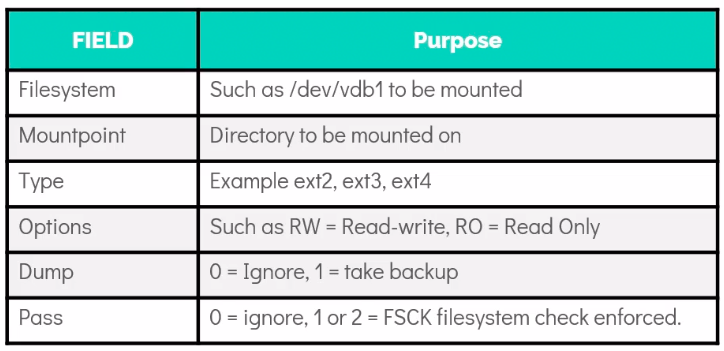
Linux Partitions and Mount Points
Section titled “Linux Partitions and Mount Points”Partitions and Filesystems
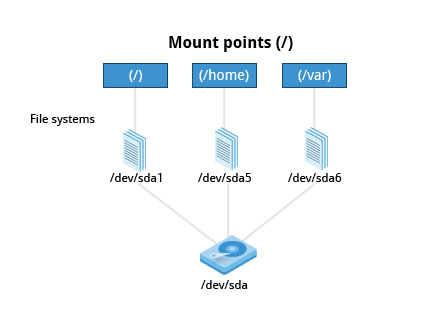
Section titled “Partitions and Filesystems”Each filesystem lives in a partition (or logical volume). Partitions isolate different types of data - if /var fills up, the root filesystem keeps working.
Mount Points
Section titled “Mount Points”Before using a filesystem, you must mount it - attach it at a directory in the tree called the mount point.
mount and umount
Section titled “mount and umount”# Basic mountsudo mount /dev/sdb1 /mnt/data # mount by device nodesudo mount UUID="abc123..." /mnt/data # mount by UUID (preferred)sudo mount LABEL="mydata" /mnt/data # mount by label
# With optionssudo mount -o ro /dev/sdb1 /mnt/data # read-only mountsudo mount -o remount,rw /mnt/data # remount as read-writesudo mount -t ext4 /dev/sdb1 /mnt/data # explicit filesystem type
# Unmountsudo umount /mnt/data # by mount point (note: umount, not unmount!)sudo umount /dev/sdb1 # by device
# View current mountsmount # all mounted filesystemsmount | grep sdb # filterdf -Th # with filesystem type and space usagecat /proc/mounts # kernel's current mount table (most accurate)findmnt # tree view of mount pointsfindmnt /mnt/data # info about specific mount point/etc/fstab - Persistent Mounts
Section titled “/etc/fstab - Persistent Mounts”/etc/fstab defines filesystems that should be mounted automatically at boot.
# <device> <mountpoint> <fstype> <options> <dump> <fsck>UUID=abc123-... / ext4 defaults 0 1UUID=def456-... /boot ext4 defaults 0 2UUID=789abc-... /home ext4 defaults 0 2UUID=swap-uuid none swap sw 0 0tmpfs /tmp tmpfs defaults,nosuid 0 0| Field | Meaning |
|---|---|
| Device | Device node, UUID, LABEL, or PARTUUID |
| Mount point | Where to attach it (none for swap) |
| Filesystem type | ext4, xfs, vfat, swap, nfs, etc. |
| Options | Comma-separated; defaults = rw,suid,dev,exec,auto,nouser,async |
| Dump | 0 = no dump backup; 1 = include in dumps |
| fsck order | 0 = skip; 1 = check first (root); 2 = check after root |
Common mount options:
| Option | Effect |
|---|---|
ro / rw | Read-only / read-write |
noexec | Disallow executing binaries (good for /tmp) |
nosuid | Ignore setuid/setgid bits |
nodev | Disallow device files |
noatime | Don’t update access time on reads (performance) |
nofail | Don’t fail boot if device is missing (good for removable/NFS) |
user | Allow non-root users to mount |
sync | Synchronous writes (safe but slow) |
# Test fstab without rebootingsudo mount -a # mount everything in fstab not yet mountedsudo mount -av # verbose - see what happenedInodes
Section titled “Inodes”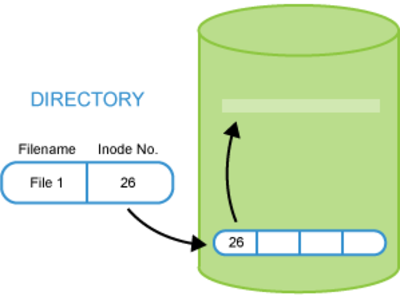
An inode (index node) is a data structure on disk that describes a file. Every file has exactly one inode. The inode stores everything about the file except its name.
Each inode stores:
- Permissions (read/write/execute for owner/group/other)
- Owner (UID) and group (GID)
- Size in bytes
- Link count (number of directory entries pointing to this inode)
- Timestamps (nanosecond precision in ext4):
atime- last access time (read)mtime- last modification time (file content changed)ctime- last change time (inode changed: permissions, owner, hard links, rename)
- Block pointers - locations of the actual data on disk
ls -i filename # show inode numberstat filename # show all inode metadata (size, all timestamps, permissions)df -i / # show inode usage for a filesystemHard Links and Symbolic Links
Section titled “Hard Links and Symbolic Links”A directory entry is just a name -> inode mapping. This is the foundation of links.
Hard Links
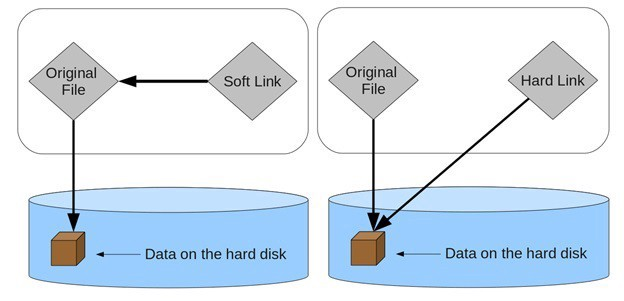
Section titled “Hard Links”A hard link is a second directory entry pointing to the same inode. Both names refer to the exact same data.
ln file1 file2 # create hard link: file2 points to same inode as file1ls -li file1 file2 # both show the same inode number; link count = 2Properties:
- Same inode number, same data, same permissions
- Deleting one name leaves the file intact (data deleted only when link count reaches 0)
- Cannot cross filesystem boundaries (inode numbers are filesystem-local)
- Cannot hard-link directories (would create cycles the kernel can’t handle)
- No concept of “original vs link” - they are equal
Symbolic (Soft) Links
Section titled “Symbolic (Soft) Links”A symlink is a file whose content is a path to another file or directory.
ln -s /path/to/original symlink # create symlinkls -la symlink # shows: symlink -> /path/to/originalreadlink symlink # print what the symlink points toreadlink -f symlink # print the ultimate resolved pathProperties:
- Has its own inode with its own permissions (though actual access uses target’s permissions)
- Can cross filesystem boundaries
- Can point to directories
- If the target is deleted or moved, the symlink becomes dangling (broken)
- Deleting the symlink does not affect the target
Comparison
Section titled “Comparison”| Feature | Hard Link | Symbolic Link |
|---|---|---|
| Inode | Same as target | Own inode |
| Cross-filesystem | No | Yes |
| Can link directories | No | Yes |
| Survives target deletion | Yes | No (becomes dangling) |
| Space overhead | None (just a directory entry) | Small (path string) |
| Detectable | ls -i (same inode number) | ls -la (shows arrow) |
Special and Network Filesystems
Section titled “Special and Network Filesystems”Special Filesystems
Section titled “Special Filesystems”Some filesystem types have no counterpart on disk - they exist purely in kernel memory and are mounted for access to kernel facilities:
| Filesystem | Mount Point | Purpose |
|---|---|---|
rootfs | None | Empty root during kernel init |
tmpfs | Anywhere | RAM disk with swap backing; re-sizable |
proc | /proc | Kernel structures and process info |
sysfs | /sys | Device tree and hardware info |
devtmpfs | /dev | Device nodes |
devpts | /dev/pts | Unix98 pseudo-terminals |
hugetlbfs | Anywhere | Large memory pages (2 MB / 4 MB) |
debugfs | /sys/kernel/debug | Kernel debugging access |
sockfs | None | BSD sockets (no user-visible mount point) |
pipefs | None | Pipes |
NFS (Network File System)
Section titled “NFS (Network File System)”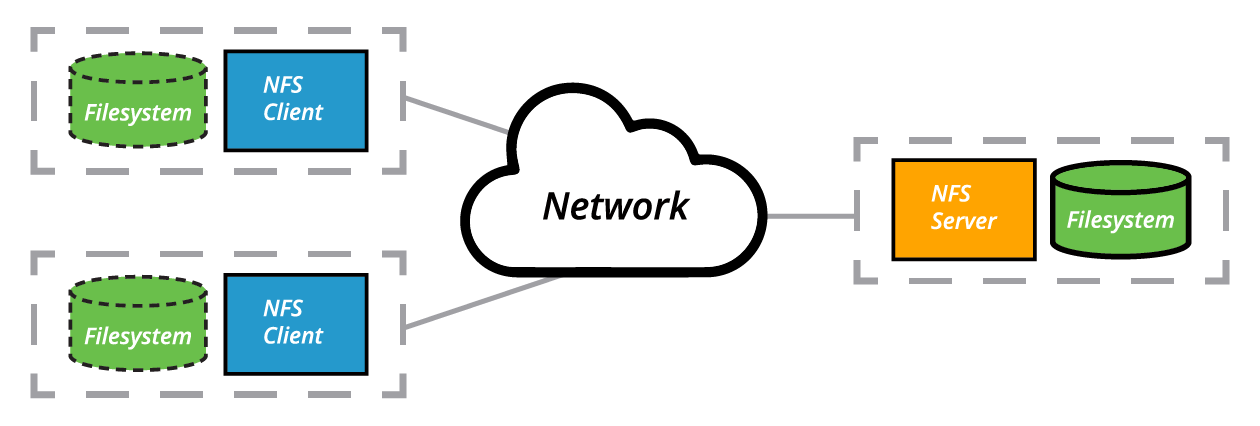
NFS allows mounting remote directories as if they were local. It uses a client-server architecture:
- Server exports directories (defined in
/etc/exports) - Client mounts those exports, accessing them via the network
- VFS makes this transparent to applications
Server setup:
# Install NFS serversudo dnf install nfs-utils               # RHEL/Fedorasudo apt install nfs-kernel-server       # Debian/Ubuntu
# Define exports in /etc/exportssudo vim /etc/exports# /projects  *.example.com(rw,sync,no_root_squash)# /data      192.168.1.0/24(ro)
# Apply exports without restartingsudo exportfs -av                        # apply and show exportssudo exportfs -ra                        # re-read /etc/exports
# Start and enablesudo systemctl enable --now nfs-server  # RHEL/Fedorasudo systemctl enable --now nfs-kernel-server  # Debian/Ubuntu
NFS export options:
| Option | Meaning |
|---|---|
rw | Read-write |
ro | Read-only |
sync | Write to disk before acknowledging (safe, slower) |
async | Acknowledge before disk write (fast, risk of data loss) |
no_root_squash | Root on client maps to root on server (risky) |
root_squash (default) | Root on client maps to nobody on server |
Client setup:
# One-time mountsudo mount server:/projects /mnt/nfs/projects
# Persistent mount in /etc/fstabserver:/projects  /mnt/nfs/projects  nfs  defaults,nofail  0  0
# Check NFS server's exportsshowmount -e server
Comparing Files
Section titled “Comparing Files”diff - Compare Two Files
Section titled “diff - Compare Two Files”diff file1 file2 # show differencesdiff -c file1 file2 # context diff (3 lines around changes)diff -u file1 file2 # unified diff (standard patch format)diff -r dir1/ dir2/ # recursive directory comparisondiff -i file1 file2 # ignore casediff -w file1 file2 # ignore whitespacediff -q file1 file2 # only report if different (no detail)cmp file1 file2 # byte-by-byte comparison (good for binaries)diff3 - Three-Way Comparison
Section titled “diff3 - Three-Way Comparison”diff3 MY-FILE COMMON-FILE YOUR-FILEUseful when you and a colleague both edited the same original file. diff3 shows what each changed relative to the shared baseline.
patch - Apply Diffs
Section titled “patch - Apply Diffs”Patches are diff files distributed to update software:
# Generate a patchdiff -Nur original/ modified/ > changes.patch
# Apply a patchpatch -p1 < changes.patch          # preferred: strip leading path componentpatch original.txt changes.patch   # apply to specific filepatch --dry-run -p1 < changes.patch  # test without modifying filespatch -R -p1 < changes.patch       # reverse: undo a patch
-p1 strips the first path component from filenames in the patch, which is standard for patches generated against a source tree.
file - Identify File Type
Section titled “file - Identify File Type”Linux file types are determined by content, not extension. A file named script.txt could be an executable, and a file named data.exe could be a text file.
file /usr/bin/ls # ELF 64-bit LSB executablefile /etc/resolv.conf # ASCII textfile image.png # PNG imagefile archive.tar.gz # gzip compressed datafile /dev/sda # block specialfile unknown_file # detect from magic bytesThe file command reads the file’s magic bytes (first few bytes) to identify it. This is the authoritative way to identify file types in Linux.