
Users & Groups
Identifying the Current User
Section titled “Identifying the Current User”whoami # print current usernamewho # list all currently logged-in userswho -a # detailed: login time, PID, idle time, hostid # print UID, GID, and all group membershipsid bjmoose # same info for another userlast # login history (user, terminal, date/time)w # who is logged in AND what they're doingAccount Types
Section titled “Account Types”Linux deliberately uses multiple account types to isolate processes and enforce least-privilege:
| Type | UID Range | Purpose |
|---|---|---|
| root | 0 | Superuser - unrestricted access to everything |
| System accounts | 1-99 (or 100-999) | Created during OS install (sshd, mail, daemon) |
| Service accounts | 100-999 (distro-dependent) | Created when services are installed (nginx, postgres) |
| Normal users | 1000+ | Human users; have their own /home directory |
- System and service accounts have no dedicated
/homeand use/sbin/nologinas their shell - they exist to run services, not to login. - Normal users start at UID 1000 by default (configured in
/etc/login.defsasUID_MIN).
/etc/passwd - The User Database
Section titled “/etc/passwd - The User Database”Every user has one line in /etc/passwd. Fields are colon-separated:
username:password:UID:GID:GECOS:home:shellowl:x:1000:1000:Owl:/home/owl:/bin/bash| Field | Description | Example |
|---|---|---|
username | Login name | owl |
password | x = password is in /etc/shadow | x |
UID | User ID (root=0, system < 1000, users >= 1000) | 1000 |
GID | Primary group ID (matches /etc/group) | 1000 |
GECOS | Full name / comment (optional) | Owl |
home | Absolute path to home directory | /home/owl |
shell | Login shell (/sbin/nologin for system accounts) | /bin/bash |
The file permission is 644 - world-readable because system programs need basic user info. Passwords are never stored here on modern systems.
/etc/shadow - Password Storage
Section titled “/etc/shadow - Password Storage”/etc/shadow stores hashed passwords. Permissions: 400 (root-read-only).
daemon:*:16141:0:99999:7:::owl:$6$iCZyCnBJ...:16316:0:99999:7:::Each colon-separated field:
| Field | Description |
|---|---|
username | Must match /etc/passwd exactly |
password | $6$[salt]$[hash] (SHA-512). * or ! means no password / locked |
lastchange | Days since Jan 1, 1970 (epoch) that password was last changed |
mindays | Min days before password can be changed again |
maxdays | Password must be changed after this many days |
warn | Days before expiry to warn the user |
grace | Days after expiry before account is disabled |
expire | Absolute expiry date (days since epoch); blank = never |
reserved | Reserved for future use |
The password hash format: $6$ (SHA-512 algorithm identifier) + 8-char salt + $ + 88-char hash.
Managing Users
Section titled “Managing Users”Adding Users
Section titled “Adding Users”# Basic: creates home dir, sets shell to /bin/bash, assigns next available UIDsudo useradd bjmoose
# Full optionssudo useradd \ -m \ # create home directory -k /etc/skel \ # copy skeleton files from /etc/skel -s /bin/bash \ # set login shell -c "Bullwinkle J Moose" \ # GECOS comment (full name) -G devs,admins \ # add to supplementary groups bmoose
# After creation, set a password (account is locked until then)sudo passwd bmooseOn creation, useradd automatically:
- Assigns the next available UID >=
UID_MIN - Creates a primary group with the same name and
GID = UID - Places
!!in/etc/shadow(account locked until password is set) - Copies
/etc/skeltemplate files to the new home directory
Modifying Users
Section titled “Modifying Users”sudo usermod -s /bin/zsh bjmoose # change shellsudo usermod -c "New Full Name" bjmoose # update GECOSsudo usermod -aG sudo bjmoose # add to sudo group (use -a to append!)sudo usermod -G group1,group2 bjmoose # set COMPLETE group list (overwrites)sudo usermod -L bjmoose # lock account (prepends ! to password hash)sudo usermod -U bjmoose # unlock accountsudo usermod -e 2025-12-31 bjmoose # set account expiry dateRemoving Users
Section titled “Removing Users”sudo userdel bjmoose # remove user, keep /home/bjmoosesudo userdel -r bjmoose # remove user AND their home directoryQuick Info Commands
Section titled “Quick Info Commands”id bjmoose # uid=1002(bjmoose) gid=1002(bjmoose) groups=...groups bjmoose # show group membershipsfinger bjmoose # full account info (if installed)Password Management
Section titled “Password Management”passwd # change your own passwordsudo passwd bjmoose # root changes another user's password (no current pwd needed)sudo passwd -l bjmoose # lock account (add ! prefix)sudo passwd -u bjmoose # unlock accountsudo passwd -d bjmoose # delete password (allow passwordless login - dangerous)sudo passwd -e bjmoose # expire password (force change on next login)Password Aging (chage)
Section titled “Password Aging (chage)”chage manages password aging policy per user. Only root can modify; any user can view their own info with -l.
sudo chage -l bjmoose # view current aging settingssudo chage -m 7 -M 90 -W 14 bjmoose # min 7d, max 90d, warn 14d beforesudo chage -d 0 bjmoose # force password change at next loginsudo chage -E 2025-12-31 bjmoose # set account expiry datesudo chage -I 30 bjmoose # disable after 30 days of inactivityTo lock someone out by setting a past expiry date:
sudo chage -E 2000-01-01 rjsquirrelsu and sudo
Section titled “su and sudo”su - Switch User
Section titled “su - Switch User”su # switch to root (requires root password)su - # switch to root with root's full environmentsu bjmoose # switch to bjmoose (requires bjmoose's password)su - bjmoose # switch to bjmoose with their login environmentsu launches a new shell as the target user. You get full, persistent root access until you exit. Giving out the root password is a major security risk.
sudo - Controlled Privilege Escalation
Section titled “sudo - Controlled Privilege Escalation”sudo command # run one command as rootsudo -u bjmoose command # run as a different usersudo -i # start a root login shellsudo -l # list what commands you're allowed to runsudo -k # invalidate cached sudo timestamp (re-prompt next time)sudo is safer because:
- Uses your password (root password not needed - not shared)
- Privilege is time-limited (default: 5-15 minutes before re-prompting)
- Every command is logged with your identity in
/var/log/auth.logor/var/log/secure - Granular control: you can allow
bjmooseto run onlysystemctl restart nginxas root, nothing else
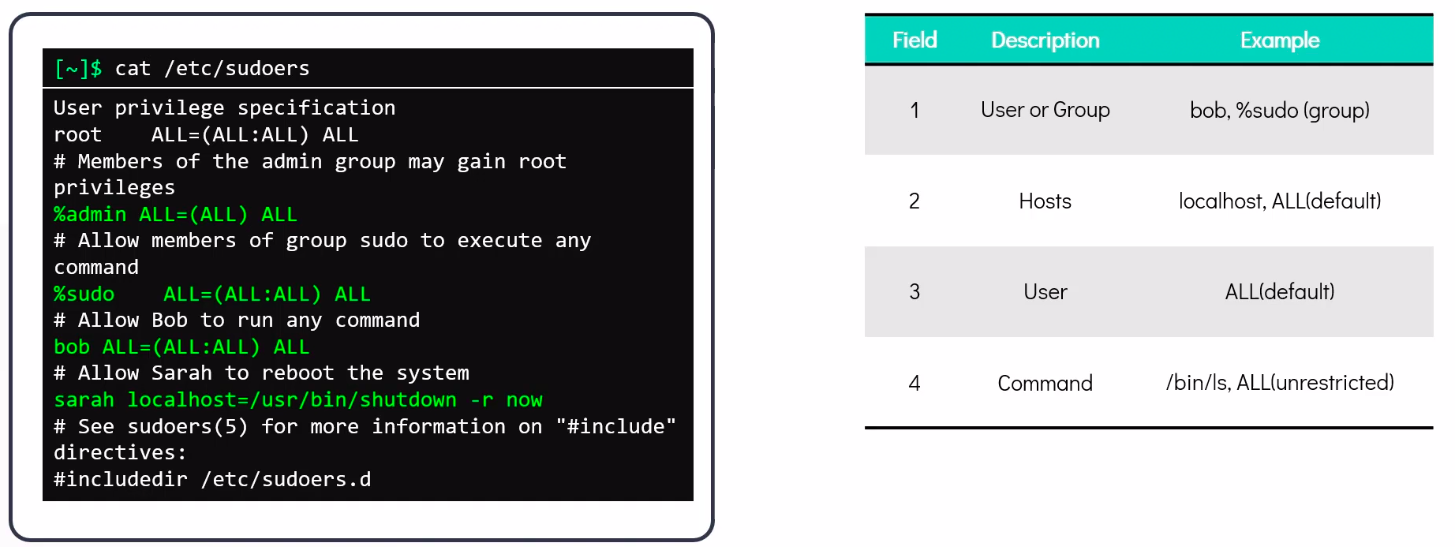
The sudoers File
Section titled “The sudoers File”sudo visudo # ALWAYS use visudo - validates syntax before savingsudo visudo -f /etc/sudoers.d/owl # edit per-user drop-in file (preferred approach)Basic sudoers entry format:
who where = (as_whom) whatowl ALL = (ALL) ALL # owl can run anything as anyonebob ALL = (root) /usr/bin/apt # bob can only run apt as root%admins ALL = (ALL) ALL # group 'admins' gets full sudoPrefer drop-in files in /etc/sudoers.d/ over editing the master file directly.
Locked / System Accounts
Section titled “Locked / System Accounts”System accounts use /sbin/nologin as their shell - they can run as service processes but cannot generate an interactive shell:
grep nologin /etc/passwd # list all no-login accountssudo usermod -s /sbin/nologin bjmoose # prevent login for a user accountIn /etc/passwd:
sshd:x:74:74:Privilege-separated SSH:/var/empty/sshd:/sbin/nologinGroups
Section titled “Groups”/etc/group Format
Section titled “/etc/group Format”groupname:password:GID:user1,user2,...devs:x:1010:owl,alice,bob| Field | Description |
|---|---|
groupname | Group name |
password | Group password (rarely used; x = see /etc/gshadow) |
GID | Group ID; 0-99 system groups; GID_MIN+ for user groups |
members | Comma-separated list of supplementary members (primary group members not listed) |
Primary vs Supplementary Groups
Section titled “Primary vs Supplementary Groups”- Each user has exactly one primary group (from
/etc/passwd). New files get this group as owner. - Users can have up to ~15 supplementary groups. These grant additional permissions.
idshows both:gid=1000(owl) groups=1000(owl),27(sudo),1010(devs)
Group Management
Section titled “Group Management”# Createsudo groupadd devssudo groupadd -g 1050 -r svcgroup # specific GID, system group
# Modifysudo groupmod -n developers devs # rename groupsudo groupmod -g 2000 devs # change GID
# Delete (must remove all members first or reassign primary group)sudo groupdel devs
# Membershipgroups owl # list owl's groupsid -Gn owl # same, names onlysudo usermod -aG devs owl # add owl to devs (append!)sudo gpasswd -d owl devs # remove owl from devsUser Private Groups (UPG)
Section titled “User Private Groups (UPG)”By default, useradd creates a group with the same name and GID as the user. This is the User Private Group model:
GID = UIDfor the primary group- Default
umask = 002(files:664 rw-rw-r--, dirs:775 rwxrwxr-x) - Allows collaboration: both owner and group can write by default
Shell Startup Files
Section titled “Shell Startup Files”Bash reads initialization files in a specific order depending on invocation type:
| Type | Files Read (in order, first found wins) |
|---|---|
| Login shell | /etc/profile -> ~/.bash_profile OR ~/.bash_login OR ~/.profile |
| Interactive non-login shell | ~/.bashrc |
| Non-interactive | File specified in $BASH_ENV |
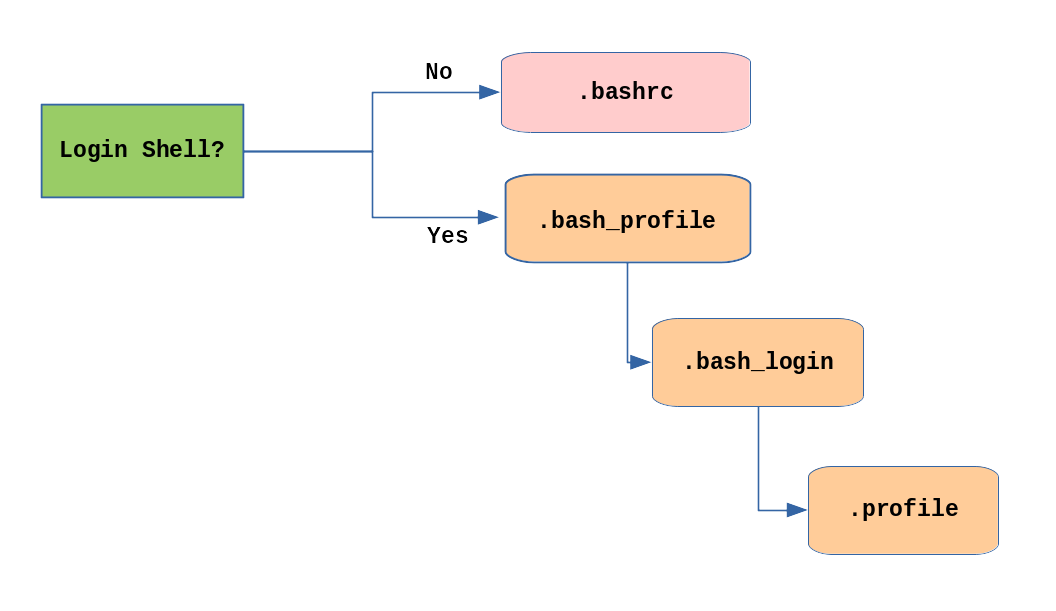
Most users only modify ~/.bashrc - it’s read every time a new terminal opens.
Aliases
Section titled “Aliases”alias # list all current aliasesalias ll='ls -la --color=auto' # define an alias (add to ~/.bashrc for persistence)alias gs='git status'unalias ll # remove an aliasNo spaces around =; quote the value if it contains spaces.
Environment Variables
Section titled “Environment Variables”Variables that child processes inherit (exported) vs variables local to the shell.
| Task | Command |
|---|---|
| Show all variables | env or printenv or export |
| Show one variable | echo $HOME |
| Set (local to shell) | MYVAR=value (no spaces around =) |
| Export to child procs | export MYVAR=value |
| Permanent | Add export MYVAR=value to ~/.bashrc, then source ~/.bashrc |
| One-shot for a command | KEY=value command |
Key Built-in Variables
Section titled “Key Built-in Variables”| Variable | Meaning | Example |
|---|---|---|
HOME | User’s home directory | /home/owl |
USER | Current username | owl |
SHELL | Path to login shell | /bin/bash |
PATH | Colon-separated list of directories searched for commands | /usr/local/bin:/usr/bin:/bin |
PWD | Current working directory | /home/owl/projects |
EDITOR | Default text editor | vim |
PS1 | Primary shell prompt format | \u@\h:\w\$ |
HISTFILE | Path to history file | ~/.bash_history |
Extending PATH
Section titled “Extending PATH”# Add ~/bin to the front of PATH (temporarily)export PATH=$HOME/bin:$PATH
# Permanently: add to ~/.bashrcecho 'export PATH=$HOME/bin:$PATH' >> ~/.bashrcPS1 Prompt Customization
Section titled “PS1 Prompt Customization”Special PS1 sequences:
| Escape | Meaning |
|---|---|
\u | Username |
\h | Hostname (short) |
\H | Hostname (full FQDN) |
\w | Current working directory |
\W | Basename of current directory |
\d | Date (Day Mon Date) |
\t | Time (HH:MM:SS) |
\! | History number of this command |
\$ | $ for normal user, # for root |
Command History
Section titled “Command History”Bash keeps command history in ~/.bash_history.
history # show numbered list of previous commandshistory 20 # show last 20history -c # clear in-memory history (not saved to file yet)history -w # write current history to fileHistory Shortcuts
Section titled “History Shortcuts”| Key / Syntax | Action |
|---|---|
Up / Down arrows | Browse previous/next commands |
Ctrl-R | Reverse incremental search through history |
!! | Repeat last command |
!n | Run command number n from history |
!string | Run most recent command starting with string |
!$ | Last argument of the previous command |
History Environment Variables
Section titled “History Environment Variables”| Variable | Purpose |
|---|---|
HISTFILE | Path to history file (default: ~/.bash_history) |
HISTSIZE | Number of commands kept in memory |
HISTFILESIZE | Number of commands saved to file |
HISTCONTROL=ignoredups | Don’t save duplicate consecutive commands |
HISTCONTROL=ignorespace | Don’t save commands starting with a space |
HISTIGNORE | Colon-separated patterns to exclude (e.g., ls:cd:exit) |
Keyboard Shortcuts
Section titled “Keyboard Shortcuts”| Shortcut | Effect |
|---|---|
Ctrl-A | Move to beginning of line |
Ctrl-E | Move to end of line |
Ctrl-U | Delete from cursor to beginning of line |
Ctrl-K | Delete from cursor to end of line |
Ctrl-W | Delete word before cursor |
Ctrl-L | Clear screen (like clear) |
Ctrl-C | Kill/interrupt current process |
Ctrl-Z | Suspend current process (send to background) |
Ctrl-D | Send EOF (logout or close shell) |
Tab | Auto-complete file/command/variable names |