
Task Scheduling
Scheduling Overview
Section titled “Scheduling Overview”Linux provides three complementary tools for running tasks at specific times:
| Tool | When to use |
|---|---|
cron | Recurring tasks on always-on servers (runs at fixed times) |
anacron | Recurring tasks on desktops/laptops that may be off when cron fires |
at | One-off tasks to run once at a specific future time |
sleep | Delay within a script or shell session |
at - One-Off Scheduled Commands
Section titled “at - One-Off Scheduled Commands”at schedules a command to run once at a specific future time. Jobs are run by the atd daemon.
# Basic schedulingat 15:00                    # at 3 PM today (or tomorrow if past)at 15:00 2025-12-31         # at 3 PM on a specific dateat 'August 20 2025'         # on a specific dateat '2:30 August 20 2025'    # date and time
# Human-friendly time expressionsat noonat midnightat teatime                  # 4 PMat tomorrowat 'next Monday'at 'now + 30 minutes'at 'now + 3 hours'at 'now + 3 days'at 'now + 3 weeks'at 'now + 3 months'
After typing at <time>, you enter an interactive prompt. Type your commands, then press CTRL-D to save:
at 15:00warning: commands will be executed using /bin/shat> /usr/bin/touch /tmp/file_created_by_atat> <CTRL-D>job 20 at Wed Nov 17 15:00:00 2021Managing at Jobs
Section titled “Managing at Jobs”atq # list pending at jobs# 20 Wed Nov 17 15:00:00 2021 a aaron# (20 is the job ID)
at -c 20 # show what job 20 will run
atrm 20 # remove job 20Access Control
Section titled “Access Control”at obeys access control files:
/etc/at.allow- if this exists, only listed users can useat/etc/at.deny- list of users denied access; if neither file exists, only root can useat
cron - Recurring Scheduled Tasks
Section titled “cron - Recurring Scheduled Tasks”cron runs jobs on a recurring schedule. It is a daemon that wakes up every minute, checks all crontab files, and runs any jobs whose time has come.
How cron Works
Section titled “How cron Works”cronis driven by crontab files - simple text files listing jobs and their schedules- There are system-wide crontab files (
/etc/crontab,/etc/cron.d/) and per-user files (managed withcrontab -e) - Each cron job is defined by a CRON expression (5 time fields) + the command to run
Cron Limitations
Section titled “Cron Limitations”| Limitation | Impact |
|---|---|
| Minimum interval is 60 seconds | Cannot schedule sub-minute jobs |
| Centralized on one machine | If the machine is off, jobs are missed (no make-up) |
| No retry on failure | A failed job won’t run again until next scheduled time |
| Misses jobs if machine is powered off | Solution: use anacron instead |
Crontab Syntax
Section titled “Crontab Syntax”Forget the syntax? Run
cat /etc/crontabto see an example with comments.
MIN HOUR DOM MON DOW CMD0 2 * * * /usr/local/bin/backup.sh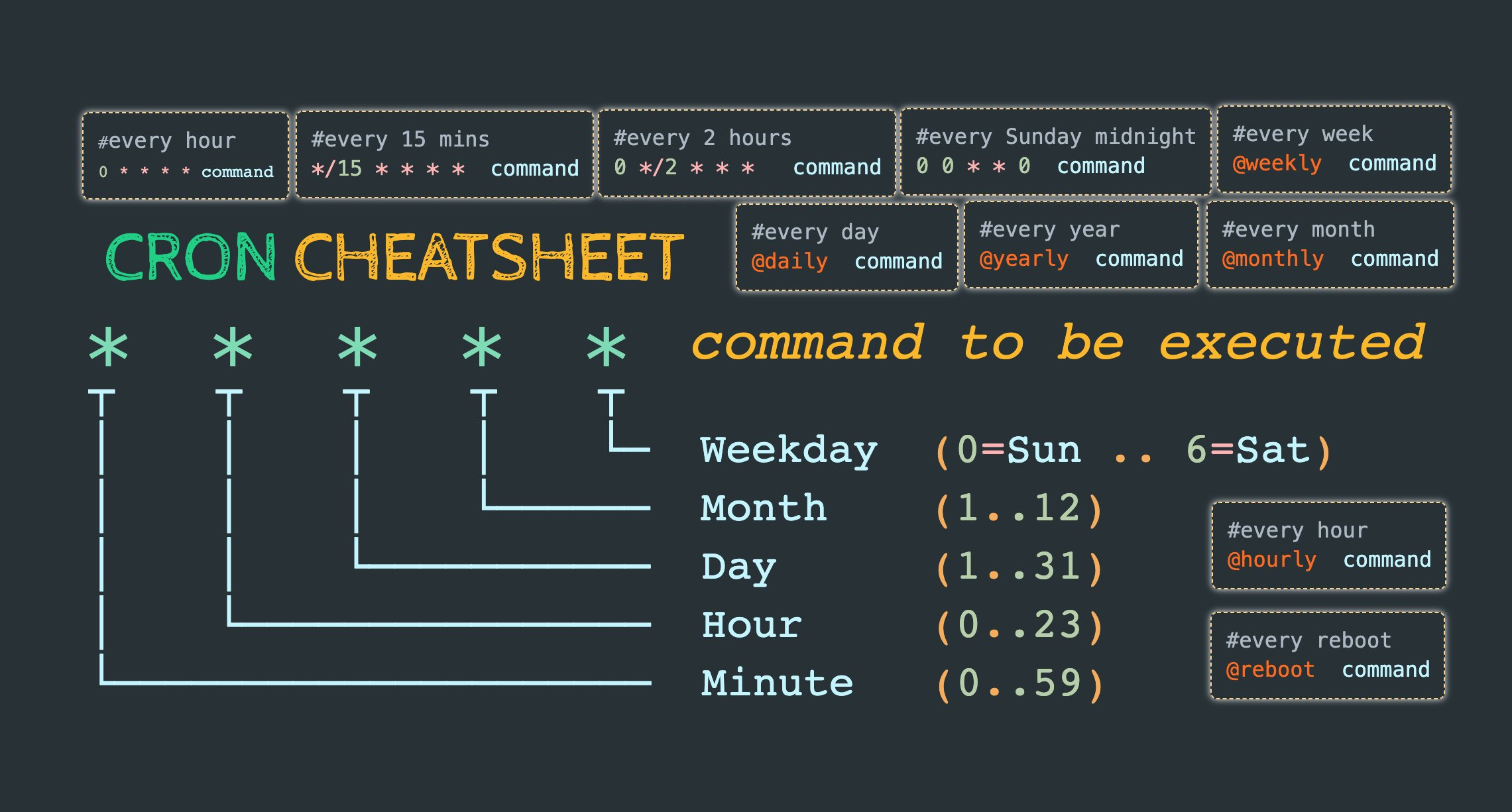
| Field | Name | Range |
|---|---|---|
| 1 | Minute | 0-59 |
| 2 | Hour | 0-23 |
| 3 | Day of Month | 1-31 |
| 4 | Month | 1-12 (or Jan-Dec) |
| 5 | Day of Week | 0-6 (0=Sunday) |
| 6 | Command | Full path recommended |
Special characters:
| Symbol | Meaning | Example |
|---|---|---|
* | Every value | * * * * * = every minute |
, | Multiple values | 15,45 = at 15 and 45 minutes |
- | Range | 2-4 = hours 2, 3, 4 |
/ | Step | */4 = every 4 hours; 0-23/2 = every 2 hours |
Example Crontab Entries
Section titled “Example Crontab Entries”# Every minute* * * * * /path/to/script.sh
# Every day at 2:30 AM30 2 * * * /usr/local/bin/backup.sh
# Every Monday at 8 AM0 8 * * 1 /usr/local/bin/weekly-report.sh
# 10th of every month at midnight0 0 10 * * /usr/local/bin/monthly-cleanup.sh
# Every 15 minutes*/15 * * * * /usr/local/bin/check-status.sh
# Weekdays only at 9 AM0 9 * * 1-5 /usr/local/bin/workday-start.sh
# Full backup at 8:30 AM on June 1030 8 10 6 * /home/sysadmin/full-backup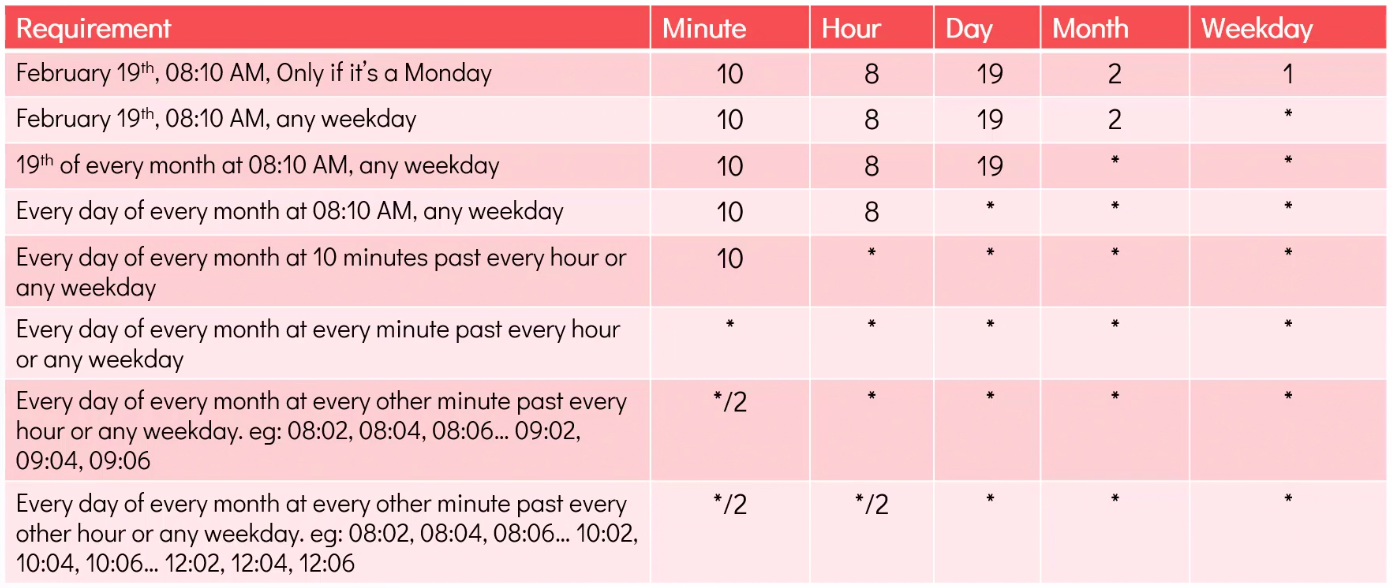
Managing Crontabs
Section titled “Managing Crontabs”crontab -e # edit your crontab (opens in $EDITOR)crontab -l # list your crontabcrontab -r # remove your crontab (careful - no confirmation)
sudo crontab -l # view root's crontabsudo crontab -e -u username # edit another user's crontabsudo crontab -r -u username # remove another user's crontabSystem Crontab Directories
Section titled “System Crontab Directories”Drop scripts directly into these directories for automatic scheduling (no crontab syntax needed):
/etc/cron.hourly/ # run every hour/etc/cron.daily/ # run every day/etc/cron.weekly/ # run every week/etc/cron.monthly/ # run every month# Add a script to run hourlysudo cp myscript.sh /etc/cron.hourly/sudo chmod +rx /etc/cron.hourly/myscript.sh
# Remove itsudo rm /etc/cron.hourly/myscript.shScripts in these directories must be executable and should not have a file extension (or have at most a .sh extension).
anacron - Cron for Machines That Sleep
Section titled “anacron - Cron for Machines That Sleep”anacron executes jobs periodically (in days), but unlike cron, it checks timestamps to see if a job was missed. If the machine was off when a job was due, anacron runs it at the next boot (after a configurable delay).
This makes anacron ideal for desktops, laptops, and any machine that isn’t guaranteed to be running 24/7.
How anacron Works
Section titled “How anacron Works”- On startup (or periodically),
anacronreads/etc/anacrontab - For each job, it checks the timestamp in
/var/spool/anacron/ - If
current_date - last_run >= period_in_days, it runs the job - A configurable delay in minutes staggers jobs to avoid all running at once immediately after boot
Key files:
/etc/anacrontab- job definitions/var/spool/anacron/- timestamp files per job (daily, weekly, monthly, etc.)
anacrontab Format
Section titled “anacrontab Format”period_days delay_minutes job-identifier commandsudo vim /etc/anacrontab
# Run every 3 days, 10 min delay after boot3 10 test-job /usr/bin/touch /root/anacron_was_here
# Weekly7 10 weekly-job /usr/local/bin/weekly.sh@weekly 10 weekly-job /usr/local/bin/weekly.sh # same thing
# Monthly@monthly 15 monthly-job /usr/local/bin/monthly.shThe delay (in minutes) is important: if a machine was off and missed 5 scheduled daily jobs, running all 5 simultaneously at boot would cause a CPU/I/O spike. The delay staggers them.
Verify anacrontab Syntax
Section titled “Verify anacrontab Syntax”anacron -T # test syntax (no output = valid)# anacron: Invalid syntax in /etc/anacrontab on line 17 - skipping this lineanacron Flags
Section titled “anacron Flags”| Flag | Effect |
|---|---|
-f | Force run all jobs, ignoring timestamps |
-n | Run now - ignore delay |
-s | Serialize: don’t start a new job until previous one finishes |
-u | Update timestamps only; don’t actually run jobs |
-d | Debug mode: don’t fork, print messages to stderr |
-T | Test syntax of /etc/anacrontab |
cron vs anacron
Section titled “cron vs anacron”| Feature | cron | anacron |
|---|---|---|
| Type | Daemon (runs continuously) | Not a daemon (runs on trigger) |
| Best for | Servers (always on) | Desktops / laptops |
| Minimum interval | 1 minute | 1 day |
| Misses jobs when off? | Yes - they are lost | No - runs them on next boot |
| Who can use it | Root and regular users | Root only (unless specially configured) |
| Retry on failure | No | No |
Rule of thumb:
- Server that’s always on: use
cron - Workstation or laptop that sleeps/hibernates: use
anacron(or systemd timers)
sleep - Pause Execution
Section titled “sleep - Pause Execution”sleep suspends execution for a specified duration. After the time elapses (or a signal is received), execution resumes.
sleep 5 # wait 5 secondssleep 5s # same (explicit suffix)sleep 2m # 2 minutessleep 1h # 1 hoursleep 1d # 1 daysleep 0.5 # 500 millisecondsSuffixes: s (seconds, default), m (minutes), h (hours), d (days).
Common Uses in Scripts
Section titled “Common Uses in Scripts”# Retry loop with backofffor i in 1 2 3 4 5; do command && break # run command; if success, exit loop echo "Attempt $i failed, waiting 10s..." sleep 10done
# Wait for a service to come upuntil systemctl is-active --quiet nginx; do echo "Waiting for nginx..." sleep 2done
# Throttle a loop (avoid hammering an API)for item in "${items[@]}"; do process "$item" sleep 1doneVerifying Scheduled Jobs Ran
Section titled “Verifying Scheduled Jobs Ran”All cron, anacron, and at jobs are logged:
# All cron job activitysudo cat /var/log/cronjournalctl -u crond --since "yesterday"
# Filter by typesudo grep CMD /var/log/cron         # cron jobs that ransudo grep anacron /var/log/cron     # anacron activitysudo grep atd /var/log/cron         # at jobs that ran
# Check for failed jobs (non-zero exit)journalctl -u crond -p warning
Output from cron jobs is typically mailed to the crontab owner. To redirect it:
# Discard all output* * * * * /path/to/script.sh > /dev/null 2>&1
# Log stdout and stderr to a file* * * * * /path/to/script.sh >> /var/log/myscript.log 2>&1
# Log with timestamp* * * * * date >> /tmp/job.log && /path/to/script.sh >> /tmp/job.log 2>&1