
Docker Mounting
- All data written inside a container’s writable layer is ephemeral - it disappears when the container is removed.
- Every container gets its own MNT namespace - an isolated file tree rooted at
/. Docker mounts the container image at this root, then attaches external storage (volumes, bind mounts, tmpfs) at specific paths within that tree. - To persist data or share it between containers and the host, you attach external storage via a mount.
- Three main mount types: Volumes (Docker-managed), Bind Mounts (host path), tmpfs (memory-only).
- Stateful applications (databases, file servers, message queues) must use volumes or mounts - data must outlive the container. Stateless applications can rely on the ephemeral writable layer for temporary data only.
Mount Types Comparison
Section titled “Mount Types Comparison”| Type | Managed by | Persists after docker rm | Performance | Best For |
|---|---|---|---|---|
| Volume | Docker | Yes | Native | Production data, database storage |
| Bind Mount | Host OS | Yes (host file) | Native | Development, config injection |
| tmpfs | Kernel (memory) | No | Fastest | Secrets at runtime, temp caches |
Volumes
Section titled “Volumes”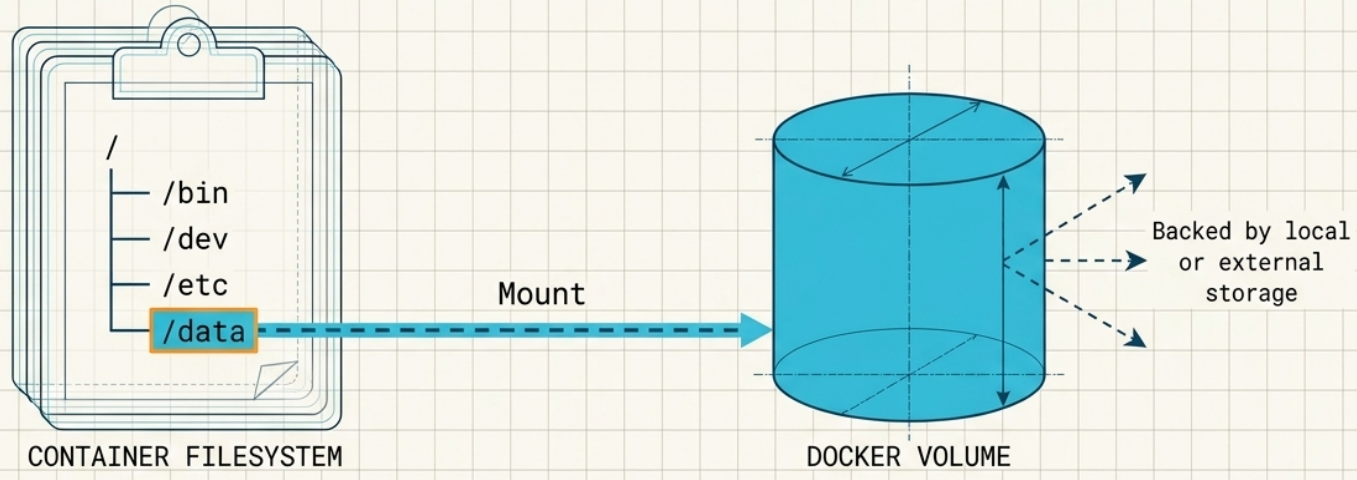
-
Volumes are the recommended way to persist data in production. Docker creates a directory on the host (typically
/var/lib/docker/volumes/<name>/_data) and manages it independently of the container lifecycle. -
Volumes can be shared across multiple containers and survive container removal.
-
Native I/O performance: Volumes bypass the container’s Copy-on-Write filesystem layer entirely, giving native disk throughput. Critical for I/O-intensive workloads like databases - CoW overhead degrades performance under sustained write load.
-
Host-independent portability: Unlike bind mounts, volumes don’t require containers to know the host directory structure. The same image runs identically on any machine.
-
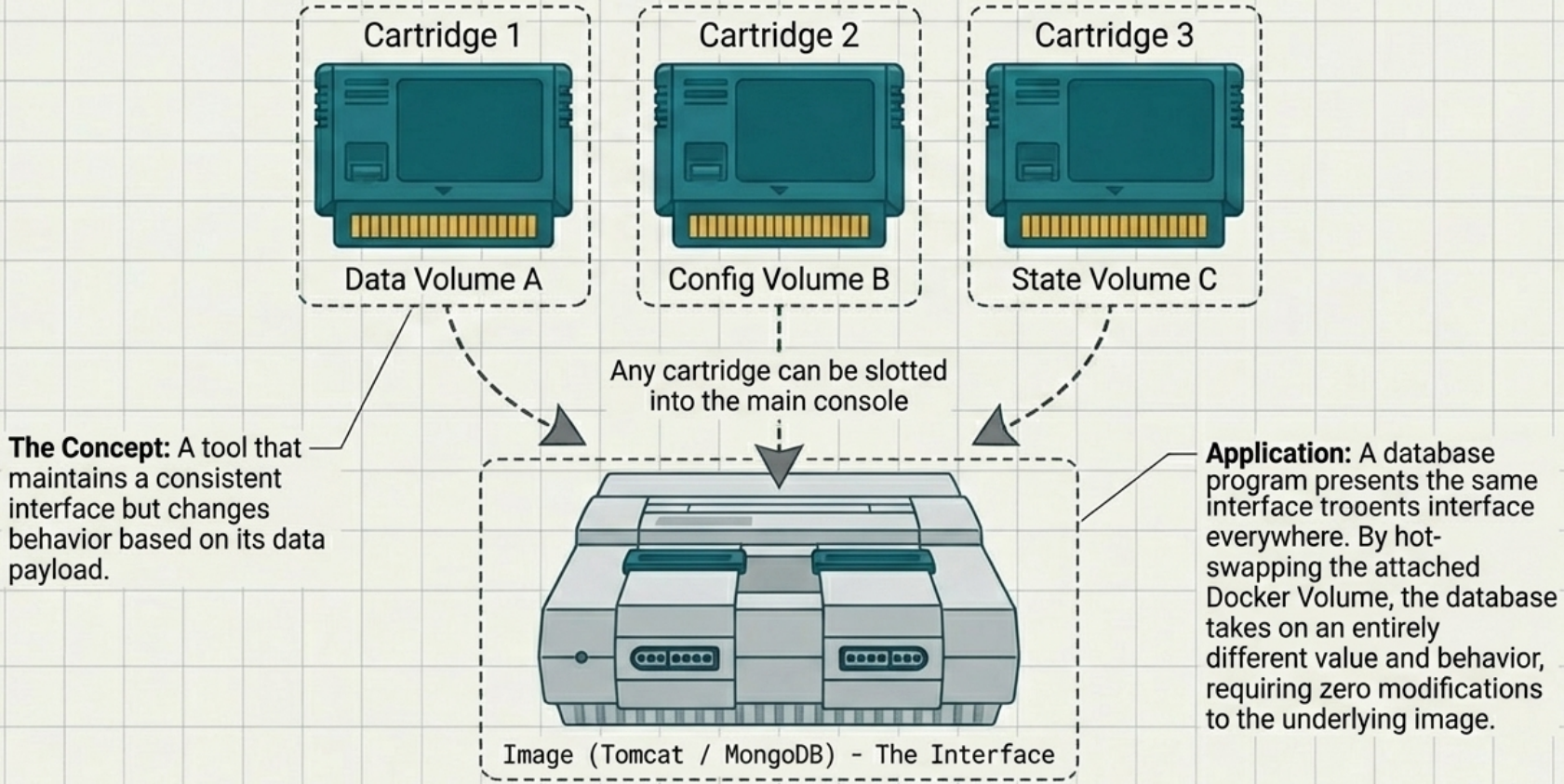
Polymorphic container pattern: The image packages static software; the volume provides dynamic data. A database image always runs the same binary - the mounted volume defines what data it holds. Same image + different volume = different database (prod, staging, test) with zero code changes.
Terminal window # Create a named volumedocker volume create db-data# Create with a label (for filtering and organizing volumes)docker volume create --label env=prod db-data# List volumesdocker volume ls# Inspect a volume - the "Mountpoint" field in output shows the exact host path where data livesdocker volume inspect db-data# Mount a volume at container run timedocker run -d \-v db-data:/var/lib/postgresql/data \ # named volume syntaxpostgres:16-alpine# Same with --mount (more explicit, preferred in scripts)docker run -d \--mount type=volume,src=db-data,dst=/var/lib/postgresql/data \postgres:16-alpine# Read-only volumedocker run -d \--mount type=volume,src=config-vol,dst=/etc/app,ro \my-app# Remove a volume (only when no containers use it)docker volume rm db-data# Remove volumes not currently mounted to any container or servicedocker volume prune# Remove ALL volumes on the host - including unmounted ones (data loss risk)docker volume prune --all# Target specific volumes using a filter (e.g., by label)docker volume prune --filter label=env=staging# Suppress confirmation prompt (for automation/scripts)docker volume prune --force
Named vs anonymous volumes:
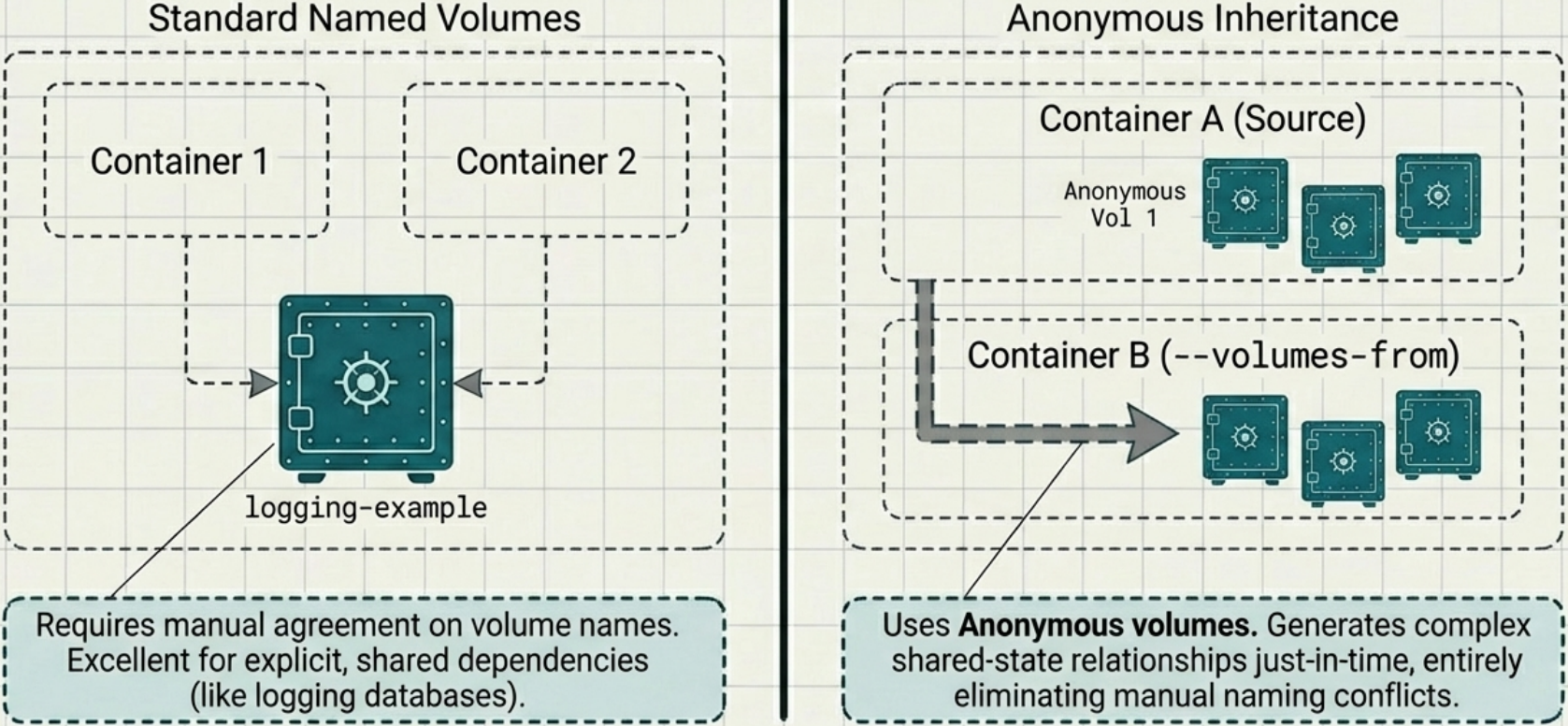
- Named volumes (
docker volume create my-dataor-v my-data:/path) persist until explicitly deleted - they survive all container lifecycles, includingdocker run --rm. Useful for periodic job containers that must preserve output even after auto-cleanup. - Anonymous volumes (created without a name, e.g., from a bare
VOLUMEinstruction in a Dockerfile) are automatically deleted when the container is removed withdocker run --rmordocker rm -v.
Where Volume Data Lives
Section titled “Where Volume Data Lives”On Linux: /var/lib/docker/volumes/<volume-name>/_data
On Docker Desktop (macOS/Windows), Docker runs inside a Linux VM. Volume data is inside that VM’s filesystem - not directly accessible from your Mac/Windows filesystem. To inspect it:
# Access the Docker Desktop VM filesystem (use this exact pinned image - security)docker run -it --rm --privileged --pid=host \  justincormack/nsenter1@sha256:5af0be5e42ebd55eea2c593e4622f810065c3f45bb805eaacf43f08f3d06ffd8
# Then navigate to the volume data inside the VMls /var/lib/docker/volumes/db-data/_data
Bind Mounts
Section titled “Bind Mounts”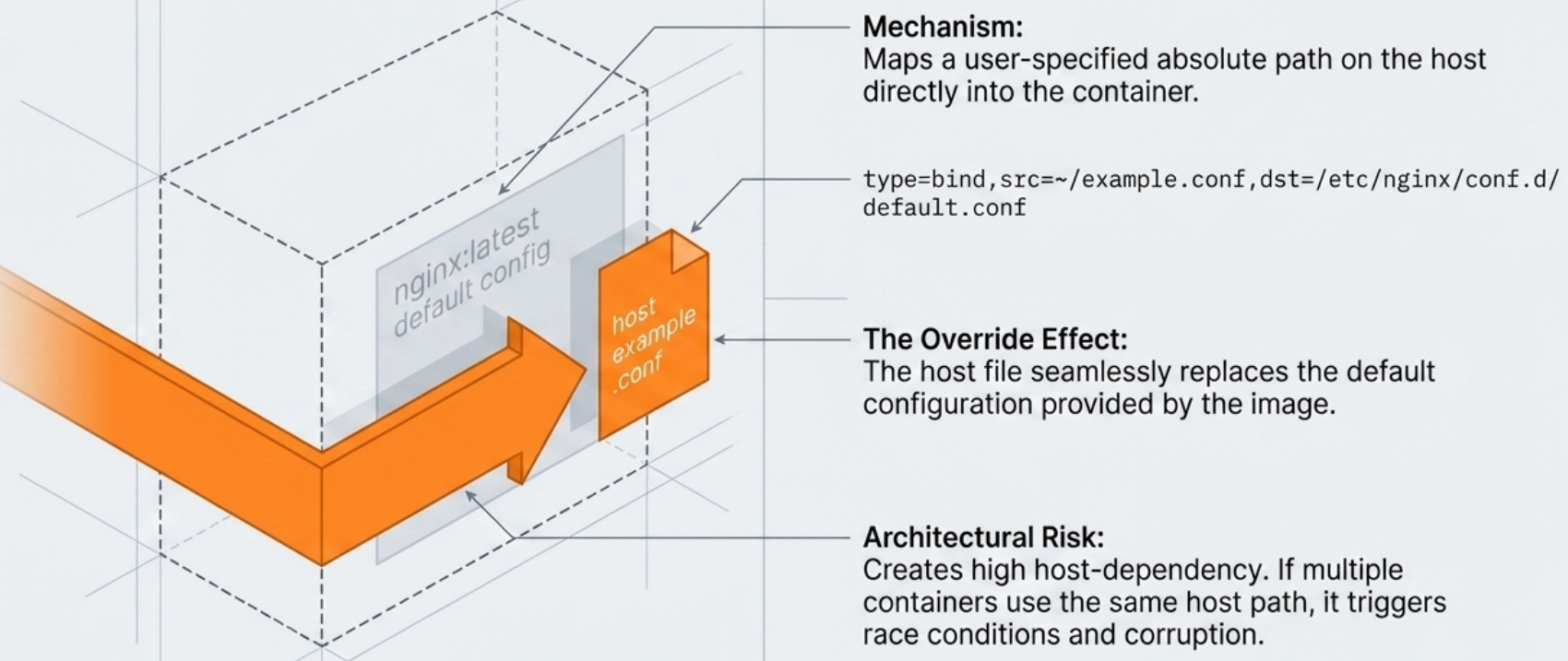
- Maps a specific host path directly into the container. Changes are immediately visible on both sides.
- Ideal for development (mount source code into a container so edits are reflected live), injecting configuration files, or exporting container output - e.g., bind-mounting a log directory so a log-forwarding agent on the host can read it directly.
- Not portable - depends on a specific host path existing. Avoid in production images.
- Mount shadowing: When you mount to a directory that already has content from the image (e.g.,
/app), the mount hides the image’s original files for the life of the container. The image files are not deleted - just obscured. Unmounting restores visibility.
# Bind mount the current directory to /app in the containerdocker run -d \  -v $(pwd):/app \                  # short syntax  -v $(pwd)/nginx.conf:/etc/nginx/nginx.conf:ro \  # read-only  my-app
# --mount equivalent (clearer for CI/CD scripts)docker run -d \  --mount type=bind,src=$(pwd),dst=/app \  my-app
# Read-only bind mount via --mount (use readonly=true, not :ro)docker run -d \ --mount type=bind,src=$(pwd)/config,dst=/etc/app,readonly=true \ my-apptmpfs Mounts
Section titled “tmpfs Mounts”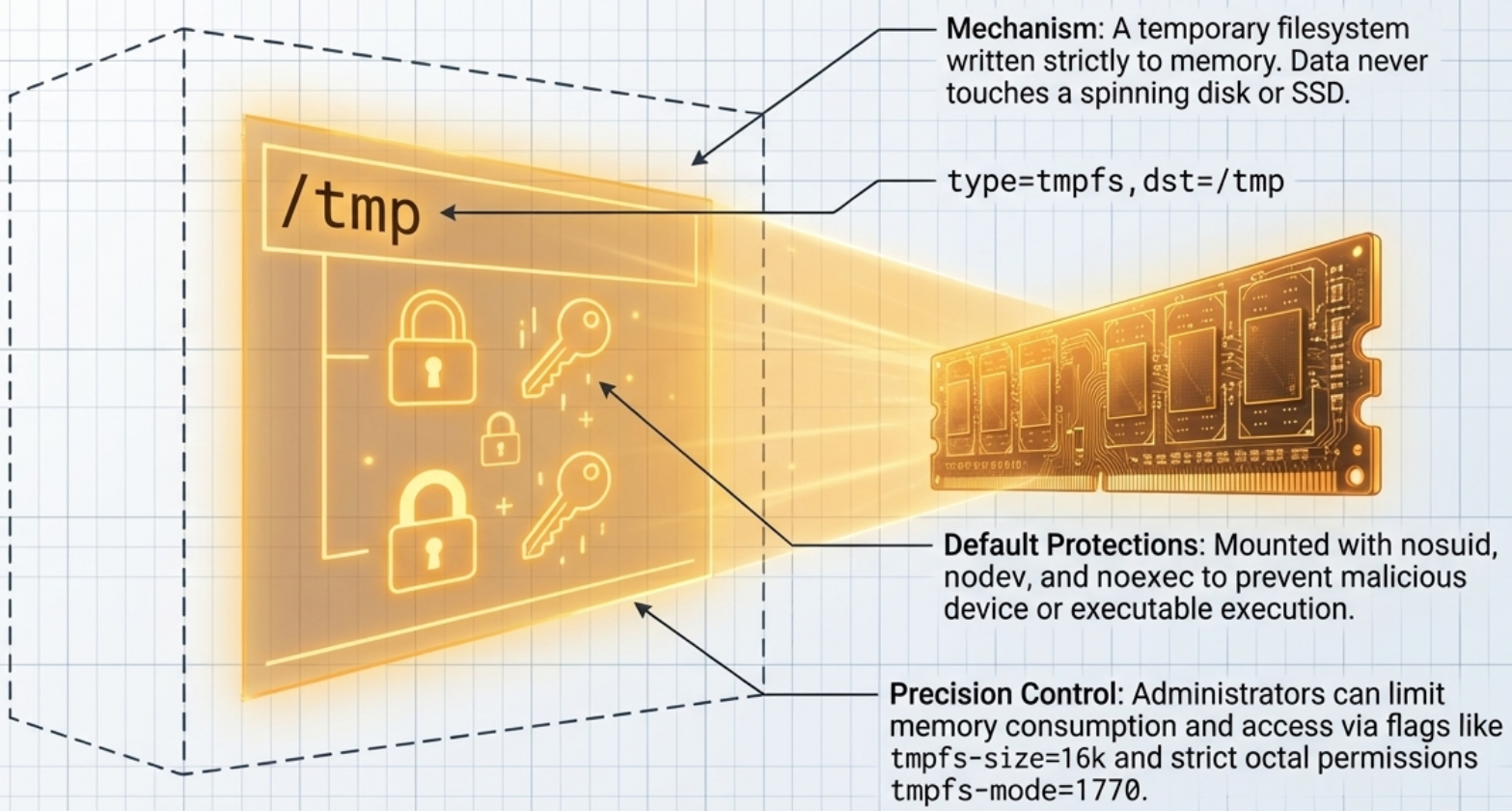
- Data stored in memory only - never written to disk. Lost when the container stops or restarts.
- Use for sensitive data (tokens, API keys at runtime) that must not be persisted to disk, or for high-speed temporary caches.
- Docker’s tmpfs defaults (applied automatically unless overridden): no size limit, world-writable (
1777permissions),noexec(files cannot be executed),nodev(no special device files),suidbits ignored. Sensible for scratch space, but always settmpfs-sizeandtmpfs-modefor security-critical mounts.
# Mount a tmpfs at /tmp/cache in the containerdocker run -d \  --mount type=tmpfs,dst=/tmp/cache \  my-app
# With size and mode options# tmpfs-mode=1700 = octal 0o1700 = sticky bit + rwx for owner only (no group/other access)docker run -d \ --mount type=tmpfs,dst=/tmp/secrets,tmpfs-size=64m,tmpfs-mode=1700 \ my-appConfigs and Secrets (Swarm Mode Only)
Section titled “Configs and Secrets (Swarm Mode Only)”- Secrets and Configs are Docker Swarm primitives for distributing sensitive data to services without embedding it in images or environment variables.
- Only available in Swarm mode - not in standalone
docker runor Compose without Swarm.
# Create a secret from a fileecho "supersecretpassword" | docker secret create db_password -
# Use in a Swarm servicedocker service create \ --name my-app \ --secret db_password \ my-app-image# Secret is mounted at: /run/secrets/db_password- In Compose with Swarm, use the
secrets:key. For non-Swarm Compose, use environment variables from.envfiles or bind-mount config files instead.
Volume Drivers
Section titled “Volume Drivers”By default, volumes are stored on the local host filesystem. Volume drivers let you back a named volume with remote or distributed storage:
# Example: NFS-backed volume (useful with AWS EFS on EC2)docker volume create \ --driver local \ --opt type=nfs \ --opt o=addr=efs.example.com,rw \ --opt device=:/ \ efs-dataCloud-native alternatives: AWS EFS CSI driver (EKS), Azure Files (AKS), GCS Fuse - these are typically configured at the orchestrator level, not directly with Docker.
Popular third-party volume plugins: REX-Ray, Portworx, Docker CloudStor, Flocker, Blockbridge. These integrate with AWS EBS, SAN, NAS, NFS, Ceph, and vSphere. Plugins are managed via docker plugin subcommands:
# List installed pluginsdocker plugin ls
# Install a plugindocker plugin install rexray/ebs
# Create a volume using the installed driverdocker volume create --driver rexray/ebs ebs-volChoosing the Right Mount
Section titled “Choosing the Right Mount”- Databases and stateful services in production → Named Volume
- Source code in development → Bind Mount (live reload)
- Config files → Bind Mount (read-only) or Docker Secret (Swarm)
- Build artifacts or temp files → tmpfs or anonymous volume
- Sharing data between containers → Named Volume
- Cross-host persistence (multi-node) → Volume with NFS/cloud driver or orchestrator CSI