
Printing
Printing on Linux
Section titled “Printing on Linux”Printing in Linux requires software that:
- Converts your document from an application’s format into a language the printer understands
- Sends the data to the right device (local USB, network, or remote)
The Linux standard for this is CUPS (Common UNIX Printing System).
CUPS - Common UNIX Printing System
Section titled “CUPS - Common UNIX Printing System”CUPS acts as a print server for both local and network printers. It uses a modular architecture to accommodate many different printer models and data formats - different printers may speak completely different page description languages, and CUPS handles the translation.
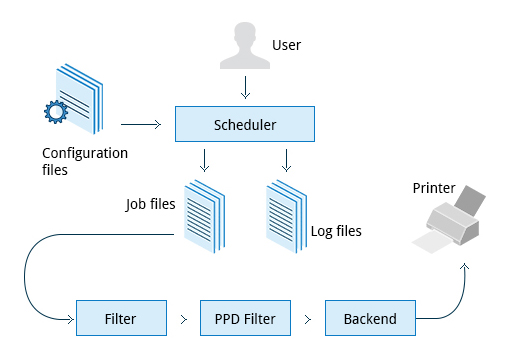
How CUPS Works
Section titled “How CUPS Works”CUPS processes a print job through several components:
| Component | Role |
|---|---|
| Scheduler | Manages print jobs, admin commands, printer status, data flow |
| Configuration files | cupsd.conf (system-wide settings), printers.conf (printer-specific) |
| Job files | Queued documents stored under /var/spool/cups; data files prefixed d, control files prefixed c |
| Log files | Stored in /var/log/cups; include access, error, and page records |
| Filters | Convert job file formats to the printer’s format |
| Printer drivers | Stored under /etc/cups/ppd/; describe printer capabilities |
| Backend | Locates and communicates with printer devices |
When you print: the scheduler validates the job → creates job files according to config → logs activity → sends data through filter → driver → backend → printer.
Configuration Files
Section titled “Configuration Files”cupsd.conf- system-wide settings: network access, printer advertisement on LAN, management features. Does not contain printer-specific details.printers.conf- auto-generated when printers are added. Should not be edited by hand.
Both live under /etc/cups/.
Starting and Managing CUPS
Section titled “Starting and Managing CUPS”systemctl status cupssudo systemctl start cupssudo systemctl enable cups # start at bootsudo systemctl restart cupssudo systemctl stop cupsPrinting from the CLI
Section titled “Printing from the CLI”CUPS provides two CLI printing interfaces - one from each major UNIX lineage:
| Tool | Origin | Usage |
|---|---|---|
lp | System V | Primary printing command |
lpr | BSD | Alternative syntax |
Both support printing text, PostScript, PDF, and images. lp is a front-end to lpr that passes input through.
lp filename # print to default printerlp -d HP-LaserJet filename # print to a specific printerlp -n 3 filename # print 3 copiesprogram | lp # print output of a programecho "test page" | lp # print a stringlpoptions -d printer-name # set the default printerlpoptions help # list supported optionsManaging Print Jobs
Section titled “Managing Print Jobs”lpq -a # show queue status across all printerslpstat -p -d # list available printers + their statuslpstat -a # check all connected printers + job numberscancel job-id # cancel a specific print joblpmove job-id newprinter # move job to a different printerPostScript and PDF
Section titled “PostScript and PDF”What is PostScript?
Section titled “What is PostScript?”PostScript is a standard page description language from Adobe. It:
- Is a pure text format interpreted by a PostScript-compatible printer
- Describes page appearance in terms of vectors and fonts - resolution-independent
- Embeds information about page layout, fonts, and graphics within the page data
- Can be used on any PostScript-compatible printer (all modern printers support it)
PDF (Portable Document Format) has largely superseded PostScript. PDFs are much smaller due to compression, and PDF support is built into most modern applications. However, PostScript is still encountered as an intermediate format in printing pipelines.
Converting Between PostScript and PDF
Section titled “Converting Between PostScript and PDF”These converters come from two packages: ghostscript (ps2pdf, pdf2ps) and poppler (pstopdf, pdftops).
| Command | Action |
|---|---|
pdf2ps file.pdf | Convert PDF to PostScript (→ file.ps) |
ps2pdf file.ps | Convert PostScript to PDF (→ file.pdf) |
pstopdf input.ps output.pdf | Alternative (poppler) |
pdftops input.pdf output.ps | Alternative (poppler) |
convert input.ps output.pdf | ImageMagick converter |
convert input.pdf output.ps | ImageMagick converter |
enscript - Text to PostScript
Section titled “enscript - Text to PostScript”enscript converts plain text files to PostScript:
enscript textfile.txt # print directly to default printerenscript -p psfile.ps textfile.txt # convert to PostScript fileenscript -2 -r -p psfile.ps textfile.txt # 2-column landscape layoutenscript -n -p psfile.ps textfile.txt # n-column (1-9) output-2- two columns-r- rotate to landscape (width > height), reducing total pages-p- output to file (not printer)
PDF Manipulation
Section titled “PDF Manipulation”Common PDF manipulation tasks:
- Merge or split PDF files
- Rotate pages
- Extract specific page ranges
- Encrypt or decrypt PDFs
- Add/update metadata
- Fill out PDF forms
Tools Overview
Section titled “Tools Overview”| Tool | Status | Notes |
|---|---|---|
qpdf | ✅ Recommended | Widely available, full-featured |
ghostscript (gs) | ✅ Recommended | Widely available, excellent for scripting |
pdftk | ⚠️ Avoid | Depends on unmaintained libgcj; many distros dropped it |
pdfmod | GUI | Simple graphical editor |
pdfinfo | CLI | Extract metadata from PDFs |
flpsed | GUI | Add data/fill fields in PostScript docs |
qpdf --empty --pages 1.pdf 2.pdf -- merged.pdf # merge two PDFsqpdf --empty --pages 1.pdf 1-2 -- pages.pdf # extract pages 1-2qpdf --rotate=+90:1 1.pdf rotated.pdf # rotate page 1 clockwise 90°qpdf --rotate=+90:1-z 1.pdf all-rotated.pdf # rotate all pagesqpdf --encrypt mypw mypw 128 -- public.pdf private.pdf # 128-bit encryptionqpdf --decrypt --password=mypw private.pdf decrypted.pdf # decryptGhostscript (gs)
Section titled “Ghostscript (gs)”# Merge multiple PDFs into onegs -dBATCH -dNOPAUSE -q -sDEVICE=pdfwrite \ -sOutputFile=all.pdf file1.pdf file2.pdf file3.pdf
# Split: extract pages 10–20gs -sDEVICE=pdfwrite -dNOPAUSE -dBATCH \ -dFirstPage=10 -dLastPage=20 \ -sOutputFile=split.pdf file.pdfAdditional PDF Tools
Section titled “Additional PDF Tools”| Tool | Use |
|---|---|
pdfinfo file.pdf | Show PDF metadata (title, pages, creator, etc.) |
pdfmod | GUI: reorder, rotate, remove pages; edit title/author/keywords |
flpsed | GUI: fill forms or add annotations to PostScript documents |
