
Graphical User Interface
CLI vs GUI
Section titled “CLI vs GUI”Linux supports both a Command Line Interface (CLI) and a Graphical User Interface (GUI):
| CLI | GUI | |
|---|---|---|
| Best for | Repetitive tasks, scripting, remote admin | Occasional tasks, visual navigation |
| Speed | Faster once learned | Easier for infrequent operations |
| Resource use | Minimal | Higher (GPU, RAM) |
| Remote access | SSH works natively | Requires X forwarding or VNC/RDP |
Display Architecture
Section titled “Display Architecture”Modern Linux desktop graphics involves several layers of software:
Application | vDisplay Server (X11 or Wayland) | vWindow Manager / Compositor | vDisplay Manager (login screen: gdm, sddm, lightdm) | vDesktop Environment (GNOME, KDE, XFCE, ...)X Window System vs. Wayland
Section titled “X Window System vs. Wayland”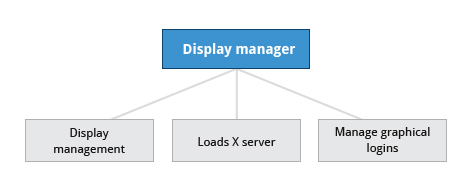
| Aspect | X Window System (X11) | Wayland |
|---|---|---|
| Architecture | Client-server: X server acts as middleman between apps and hardware | Client talks directly to compositor (combined display server + window manager) |
| Performance | Can show screen tearing; more overhead from its client-server model | Lower latency, smoother, less tearing |
| Security | Any app can snoop on other windows’ input; legacy design | Apps isolated from each other; stronger sandboxing |
| Hardware support | Requires many extensions for modern high-DPI and multi-head setups | Designed for modern GPU hardware and HiDPI |
| Compatibility | Native X11 app support; backward-compatible | Legacy X11 apps run through XWayland compatibility layer |
| Adoption | Legacy; still widely supported | Default on Fedora, RHEL 8+, Ubuntu 22.04+, and most modern distros |
Wayland is gradually replacing X11 as the default. In practice it’s mostly transparent to users - applications work the same way.
Display Manager
Section titled “Display Manager”The Display Manager is the graphical login screen. It:
- Starts the X/Wayland display server
- Shows the login prompt
- Launches the chosen desktop environment after authentication
| Display Manager | Default for |
|---|---|
| gdm (GNOME Display Manager) | GNOME, Fedora, RHEL, Ubuntu |
| sddm | KDE Plasma |
| lightdm | XFCE, older Ubuntu (pre-18.04) |
| xdm | Minimal/generic X11 |
# Check which display manager is activesystemctl status display-manager
# Switch default display managersudo dpkg-reconfigure gdm3               # Debian/Ubuntusudo systemctl enable gdm --force        # Fedora/RHEL
If no display manager is running, start a graphical session manually:
startx # start X session using ~/.xinitrc configGUI Startup Sequence
Section titled “GUI Startup Sequence”When the system reaches graphical.target, the following happens:
- systemd starts the display manager (e.g.,
gdm) - Display manager initializes the display server (X or Wayland)
- Display manager shows the login screen
- User authenticates - PAM verifies credentials
- Display manager launches the desktop environment (session manager + window manager)
Session Components
Section titled “Session Components”| Component | Role |
|---|---|
| Session Manager | Starts/maintains graphical session components; restores previous session on login |
| Window Manager | Controls window placement, title bars, borders, resizing, and focus |
| Compositor | Handles rendering effects (transparency, animations); may be integrated with window manager |
| Panel/Taskbar | Application launcher, clock, system tray, open windows |
Desktop Environments
Section titled “Desktop Environments”| Desktop Environment | Default Shell | Philosophy |
|---|---|---|
| GNOME | GNOME Shell | Clean, minimal, modern; keyboard-friendly |
| KDE Plasma | Plasmashell | Highly customizable; Windows-like layout |
| XFCE | Xfwm | Lightweight and fast; classic desktop layout |
| LXDE / LXQt | Openbox / KWin | Extremely lightweight; old hardware |
| MATE | Marco | GNOME 2 fork; traditional desktop |
| Cinnamon | Muffin | GNOME 3 fork; Windows-like; Linux Mint default |
Install a desktop environment on a server (Debian/Ubuntu example):
sudo apt install gnome-core # minimal GNOMEsudo apt install kde-plasma-desktop # KDE Plasmasudo systemctl set-default graphical.target # ensure it starts at bootUseful GUI Navigation Shortcuts (GNOME)
Section titled “Useful GUI Navigation Shortcuts (GNOME)”| Shortcut | Action |
|---|---|
Ctrl-1 / Ctrl-2 | Switch between icon and list view in file manager |
Ctrl-H | Show/hide hidden files (dotfiles) |
Ctrl-F | Open search box in file manager |
Ctrl-L | Open location bar (type a path directly) |
Super (Windows key) | Open Activities overview |
Super-Tab | Switch between running applications |
Alt-F4 | Close current window |
Ctrl-Alt-T | Open terminal (most distributions) |
Working Without a GUI (Headless / Server)
Section titled “Working Without a GUI (Headless / Server)”On servers, the GUI is typically disabled:
# Check current defaultsystemctl get-default
# Set to text mode (disable GUI startup)sudo systemctl set-default multi-user.target
# Re-enable GUIsudo systemctl set-default graphical.target
# Temporarily start GUI without changing defaultsudo systemctl isolate graphical.target
# Check display server and session infoecho $DISPLAY                           # X11 display (e.g., :0)echo $WAYLAND_DISPLAY                   # Wayland socket (e.g., wayland-0)echo $XDG_SESSION_TYPE                  # x11 or wayland