
File Permissions
File Ownership Model
Section titled “File Ownership Model”Every file and directory in Linux has:
- An owner (a user)
- An owning group
- A permission bitmask that controls what the owner, the group, and everyone else can do
ls -l myfile# -rw-rw-r-- 1 owl devs 1024 Mar 2 19:00 myfile# ^^^^^^^^^ ^ ^^^ ^^^# perms links owner groupChanging Ownership
Section titled “Changing Ownership”sudo chown alice myfile # change owner to alicesudo chown alice:devs myfile # change owner and groupsudo chown :devs myfile # change only group (same as chgrp)sudo chgrp devs myfile # change groupsudo chown -R alice:devs mydir/ # recursive (entire directory tree)Permission Bits
Section titled “Permission Bits”Linux uses 9 permission bits arranged in three triplets: owner, group, other (world):
rwx rwx rwx ^ ^ ^ | | others | group owner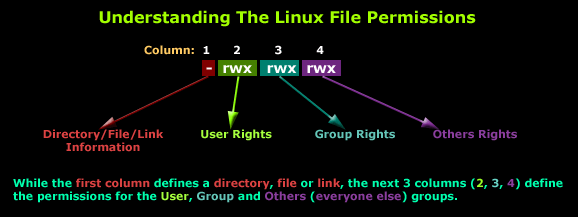
Each bit:
| Bit | Symbol | Numeric value | Meaning on file | Meaning on directory |
|---|---|---|---|---|
| Read | r | 4 | View file contents | List directory contents (ls) |
| Write | w | 2 | Modify file contents | Create/delete/rename files inside |
| Execute | x | 1 | Run as program | Enter directory (cd) and access contents |
Numeric Mode
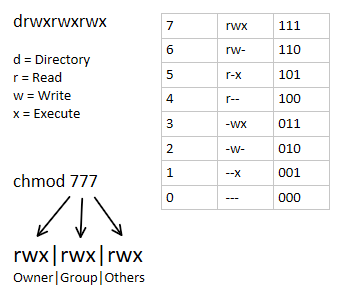
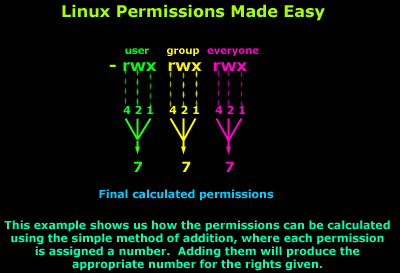
Section titled “Numeric Mode”Each triplet is the sum of its active bits (0-7):
| Sum | Binary | Permission |
|---|---|---|
7 | 111 | rwx (all) |
6 | 110 | rw- |
5 | 101 | r-x |
4 | 100 | r— |
0 | 000 | --- (none) |
Full three-digit examples:
| Mode | Owner | Group | Other | Typical Use |
|---|---|---|---|---|
755 | rwx | r-x | r-x | Directories, executable files |
644 | rw- | r— | r— | Regular files |
600 | rw- | --- | --- | Private files (SSH keys) |
700 | rwx | --- | --- | Private directories |
777 | rwx | rwx | rwx | World-writable (avoid!) |
chmod - Changing Permissions
Section titled “chmod - Changing Permissions”# Numeric modechmod 755 script.sh # rwxr-xr-xchmod 644 config.txt # rw-r--r--chmod -R 750 mydir/ # recursive
# Symbolic modechmod u+x script.sh # add execute for ownerchmod g-w shared.txt # remove write for groupchmod o-r private.key # remove read for otherschmod a+r public.html # add read for all (a = u+g+o)chmod ug=rw,o=r file.txt # set exact permissionschmod go= secret.txt # remove all perms for group and other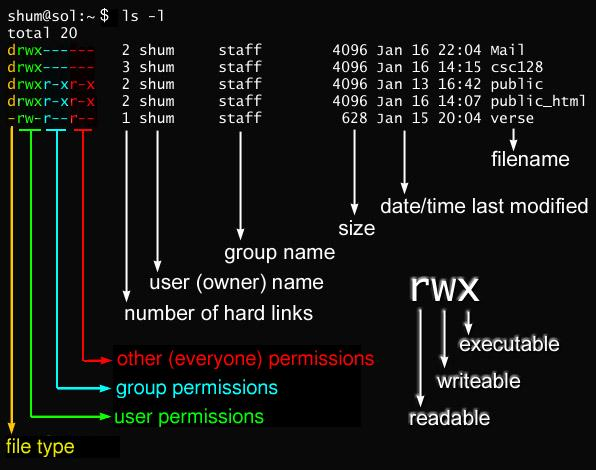
umask - Default Permission Mask
Section titled “umask - Default Permission Mask”When a new file or directory is created, the OS starts with a maximum permission and subtracts the umask:
- Files start at
0666(rw-rw-rw-) - Directories start at
0777(rwxrwxrwx) - The umask is subtracted (bitwise AND with complement)
umask # display current umask (e.g., 0022)umask 0027 # set umask for this sessionWith the default umask of 0022:
- Files:
0666 & ~022 = 0644(rw-r—r—) - Dirs:
0777 & ~022 = 0755(rwxr-xr-x)
With umask 0002 (typical for User Private Groups):
- Files:
0666 & ~002 = 0664(rw-rw-r—) - Dirs:
0777 & ~002 = 0775(rwxrwxr-x)
| umask | Files | Dirs | Use case |
|---|---|---|---|
0022 | 644 | 755 | Default (root’s umask) |
0002 | 664 | 775 | Default for users with UPG (group-collaborative) |
0027 | 640 | 750 | Group can read, others nothing |
0077 | 600 | 700 | Private (others can see/access nothing) |
Set permanently by adding umask XXXX to ~/.bashrc or /etc/profile.
Special Permissions (SUID, SGID, Sticky)
Section titled “Special Permissions (SUID, SGID, Sticky)”Beyond the standard 9 bits, there are 3 special permission bits forming a 4th digit in numeric notation.
| Special Bit | Numeric | Symbolic | On Files | On Directories |
|---|---|---|---|---|
| SUID | 4 | s on owner x | Executes as file’s owner | No standard effect |
| SGID | 2 | s on group x | Executes as file’s group | New files inherit directory’s group |
| Sticky | 1 | t on other x | No standard effect | Only file owner (or root) can delete/rename |
If the owner doesn’t have execute permission, the special bit shows as uppercase (S or T).
SUID - Set User ID
Section titled “SUID - Set User ID”A SUID executable runs with the privileges of its owner regardless of who executes it. Classic example: passwd needs to write to /etc/shadow (root-owned), but regular users must be able to change their own password.
ls -l /usr/bin/passwd# -rwsr-xr-x 1 root root 33544 ... /usr/bin/passwd# ^# 's' here = SUID set + owner has executechmod u+s /usr/bin/myprog # set SUID (symbolic)chmod 4755 /usr/bin/myprog # set SUID (numeric: leading 4)SGID - Set Group ID
Section titled “SGID - Set Group ID”On files: Executes as the file’s group owner.
On directories: New files created inside inherit the directory’s group - perfect for shared project directories.
ls -l# drwxrws--- 2 alice devs 69 ... my_articles#        ^#        's' on group position = SGID on directory
chmod g+s project/          # set SGID on directory (symbolic)chmod 2770 project/         # rwxrws--- for owner+group (numeric: leading 2)
Sticky Bit
Section titled “Sticky Bit”On a directory, the sticky bit restricts who can delete files. Even if everyone has write access to the directory, only the file’s owner (and root) can delete it. Classic use: /tmp.
ls -ld /tmp# drwxrwxrwt 15 root root 4096 ... /tmp#          ^#          't' = sticky bit set
chmod +t /shared/          # set sticky bit (symbolic)chmod 1777 /shared/        # rwxrwxrwt (numeric: leading 1)
Numeric Special Permissions Summary
Section titled “Numeric Special Permissions Summary”Four-digit mode: XYYY where X is the special digit:
| X value | Bits set |
|---|---|
0 | No special permissions |
1 | Sticky only |
2 | SGID only |
3 | SGID + Sticky |
4 | SUID only |
5 | SUID + Sticky |
6 | SUID + SGID |
7 | All three |
ACLs - Access Control Lists
Section titled “ACLs - Access Control Lists”Standard Unix permissions allow only one owner and one group per file. ACLs let you grant fine-grained access to additional specific users or groups without changing the base ownership.
A filesystem must be mounted with ACL support (ext4, XFS support ACLs by default on modern distros).
setfacl - Set ACL Entries
Section titled “setfacl - Set ACL Entries”# Grant specific user permissionssetfacl -m u:alice:rw myfile # alice gets rwsetfacl -m u:bob:r-- myfile # bob gets read-onlysetfacl -m g:devs:rw myfile # group devs gets rw
# Deny all permissions to a usersetfacl -m u:mallory:--- myfile
# Recursivesetfacl -R -m u:alice:rwx projectdir/
# Default ACL (inherited by new files in a directory)setfacl -dm u:alice:rw projectdir/ # -d flag = default
# Remove a specific ACL entrysetfacl -x u:alice myfile
# Remove ALL ACL entries (reset to standard Unix permissions)setfacl -b myfilegetfacl - View ACL Entries
Section titled “getfacl - View ACL Entries”getfacl myfile# file: myfile# owner: owl# group: devs# user::rw-# user:alice:rw-# group::rw-# mask::rw-# other::r--The ACL Mask
Section titled “The ACL Mask”The mask defines the maximum effective permissions for all ACL entries (except owner and other). It limits what named users and groups actually get:
# Set a restrictive mask (limit everyone to read-only regardless of ACL entries)setfacl -m mask:r-- myfile
getfacl myfile# user::rw-# user:alice:rw-      # effective: r-- (masked!)# group::rw-          # effective: r-- (masked!)# mask::r--# other::r--
When ACLs are present, ls -l shows a + at the end of the permission string:
ls -l myfile# -rw-rw-r--+ 1 owl devs 0 Mar 2 myfile# ^ ACL entries existExtended File Attributes (chattr / lsattr)
Section titled “Extended File Attributes (chattr / lsattr)”Beyond permissions, Linux supports extended attributes that provide behaviors the kernel enforces even for root.
lsattr filename # view attributeslsattr -R /etc/ # recursive viewchattr +i filename # set immutable flagchattr -i filename # unset immutable flagchattr +a logfile # set append-only flagchattr =i filename # set ONLY immutable (clears all other attrs)Attribute Flags
Section titled “Attribute Flags”| Flag | Name | Behavior |
|---|---|---|
i | Immutable | Cannot be modified, deleted, renamed, hard-linked; no data written; even root cannot touch it. Only root can set/clear this flag. |
a | Append-only | File can only be opened in append mode; existing data cannot be modified or deleted. Ideal for log files. |
d | No dump | File is skipped by the dump backup utility. Good for swap and cache files. |
A | No atime update | Access time (atime) is not updated on reads. Reduces I/O on read-heavy files. |
# Protect a config file from accidental modification (even by root!)sudo chattr +i /etc/resolv.confsudo lsattr /etc/resolv.conf# ----i----------- /etc/resolv.conf
# To modify it, you must first unset the flagsudo chattr -i /etc/resolv.conf
# Make a log file append-only (can't be truncated or overwritten)sudo chattr +a /var/log/secure
# Protect an entire directory recursivelysudo chattr -R +i /etc/ssl/
# Unprotectsudo chattr -R -i /etc/ssl/