
Network Tools & Services
Quick Reference
Section titled “Quick Reference”| Tool | Use it for |
|---|---|
ping | Basic reachability test |
traceroute / mtr | Path troubleshooting; packet loss per hop |
ss / netstat | Open sockets, listening ports |
nmap | Port scanning; service discovery |
tcpdump | Packet capture and analysis |
ethtool | NIC speed, duplex, link status |
curl | HTTP/API testing, downloads with headers |
wget | Recursive download, mirroring |
ssh / scp | Remote shell, secure file copy |
timedatectl | System clock and NTP status |
Network Interfaces
Section titled “Network Interfaces”Network interfaces are the connection channel between a device and a network. They can be physical (via a NIC) or virtual (software-defined). Multiple interfaces can operate simultaneously; each can be brought up or down independently.
- Information about interfaces is reported by
ip(modern) orifconfig(deprecated) iphas far more capabilities but its output is more verbose thanifconfig
ip addr show # show all interfaces and IPsip addr show eth0 # specific interfaceip link show # interface state (UP/DOWN/NO-CARRIER)Routing
Section titled “Routing”# View routing tableip route # preferredroute -n # deprecated but still works (output format differs)
# Manage routesip route show default # show default gatewayip route add 10.0.0.0/8 via 192.168.1.254 dev eth0 # add static route (temp)ip route del 10.0.0.0/8
| Task | Command ||------|---------|| Show routing table | `ip route` or `route -n` || Add static route | `ip route add <network> via <gateway>` || Delete route | `ip route del <network>` |Connectivity Testing
Section titled “Connectivity Testing”ping checks whether a machine can receive and send data - it confirms the remote host is online and responding using ICMP echo packets.
ping -c 4 8.8.8.8 # 4 packets; Ctrl+C to stop otherwiseping -i 0.2 -c 20 192.168.1.1 # fast ping (0.2s interval)ping6 ::1 # IPv6 loopback testping can increase network load if run without -c. Always limit in scripts.
traceroute
Section titled “traceroute”traceroute inspects the route that packets take to reach the destination, making it useful for isolating network delays and errors between hops.
traceroute 8.8.8.8traceroute -n 8.8.8.8 # skip hostname resolution (faster)mtr combines ping and traceroute into a continuously updated display (like top for network paths). The best tool for diagnosing intermittent packet loss - shows per-hop loss and latency live.
mtr 8.8.8.8mtr --report 8.8.8.8 # 10-probe report, then exitMore Networking Diagnostic Tools
Section titled “More Networking Diagnostic Tools”| Tool | Description |
|---|---|
ethtool | Queries NIC parameters (speed, duplex, link status); can set parameters |
netstat | Displays active connections and routing tables - deprecated, use ss |
ss | Modern replacement for netstat; faster, more detail |
nmap | Scans open ports; important for security analysis and inventory |
tcpdump | Dumps network traffic for packet-level analysis |
iptraf | Monitors network traffic in text mode (interactive) |
dig | Tests DNS; preferred replacement for host and nslookup |
Open Ports and Sockets with ss
Section titled “Open Ports and Sockets with ss”ss -tulpn # TCP+UDP listening sockets with process names (needs root for PID)ss -tp # established TCP connections with PIDsss -s # socket statistics summaryss -lp | grep :22 # who's listening on port 22
# netstat equivalent (deprecated but still common)netstat -tulpnnetstat -rn # routing table (prefer 'ip route')Port Scanning with nmap
Section titled “Port Scanning with nmap”nmap 192.168.1.1 # scan top 1000 portsnmap -p 22,80,443 192.168.1.1 # specific portsnmap -p- 192.168.1.1 # all 65535 ports (slow)nmap -sV 192.168.1.1 # version detectionnmap -O 192.168.1.1 # OS detection (requires root)nmap -sn 192.168.1.0/24 # ping sweep - find live hostsnmap -A 192.168.1.1 # aggressive: OS + version + scripts + traceroutePacket Capture with tcpdump
Section titled “Packet Capture with tcpdump”tcpdump -i eth0 # capture all traffic on eth0tcpdump -i eth0 -n # no hostname resolutiontcpdump -i eth0 port 80 # HTTP onlytcpdump -i eth0 host 10.0.0.1 # traffic to/from specific hosttcpdump -i eth0 -w capture.pcap # save for Wiresharktcpdump -r capture.pcap # read from filetcpdump -i any 'tcp and port 443 and host 10.0.0.1'NIC Diagnostics with ethtool
Section titled “NIC Diagnostics with ethtool”ethtool eth0 # speed, duplex, link status ("Link detected: yes")ethtool -i eth0 # driver and firmware infoethtool -S eth0 # statistics (errors, drops)ethtool -s eth0 speed 1000 duplex full # force speed/duplexHTTP Clients - wget and curl
Section titled “HTTP Clients - wget and curl”wget downloads files from the command line. It handles large files, recursive downloads, password-required downloads, and multiple files.
wget https://example.com/file.tar.gz # download filewget -c https://example.com/file.tar.gz # resume interrupted downloadwget -r -l 2 https://example.com/ # recursive, 2 levels deepwget -q --spider https://example.com # check URL exists (no download)curl is the tool for API testing, scripting, and inspecting HTTP responses.
curl https://example.com                      # GET to stdoutcurl -o file.html https://example.com         # save to filecurl -O https://example.com/file.tar.gz       # save with original filenamecurl -I https://example.com                   # HEAD request (headers only)curl -v https://example.com                   # verbose: TLS + headers + body
# POST JSON (common for API calls)curl -X POST https://api.example.com/data \  -H "Content-Type: application/json" \  -H "Authorization: Bearer $TOKEN" \  -d '{"key": "value"}'
# Download script and run (fail-safe flags)curl -fsSL https://example.com/script.sh | bash#  -f  fail silently on HTTP errors (4xx/5xx)#  -s  silent (no progress meter)#  -S  show error even with -s#  -L  follow redirects
Transferring Files
Section titled “Transferring Files”FTP (File Transfer Protocol)
Section titled “FTP (File Transfer Protocol)”FTP is one of the oldest network data transfer methods (dating to 1971). It uses a client-server model and supports large file transfers. However, FTP is inherently insecure - passwords and data are transmitted in cleartext.
- FTP has been removed from RHEL 8+ and recent Debian/Ubuntu due to its insecurity
- Use
sftp(SSH-based) orrsyncover SSH instead
Common FTP clients (cli): ftp, sftp, ncftp, yafc
SSH - Secure Shell
Section titled “SSH - Secure Shell”SSH (Secure SHell) provides encrypted remote login, command execution, and file transfer. It uses strong cryptographic algorithms and replaces insecure legacy protocols like telnet and rlogin.
Connecting and Running Commands
Section titled “Connecting and Running Commands”ssh user@host # connect (default port 22)ssh -p 2222 user@host # custom portssh -i ~/.ssh/mykey.pem user@host # specify private keyssh -J bastion.host user@target # ProxyJump through a bastion host
# Run commands remotelyssh user@host 'df -h'ssh user@host 'sudo systemctl restart nginx'
# Loop over hostsfor host in web01 web02 db01; do echo "=== $host ===" && ssh "$host" 'uptime'done
# pssh - parallel SSH (if installed)pssh -viH machine1 machine2 machine3 do_somethingFile Transfer
Section titled “File Transfer”# scpscp file.txt user@host:/tmp/scp user@host:/var/log/app.log ./scp -r ./local-dir/ user@host:/remote/path/
# rsync over SSH (preferred for large/incremental transfers)rsync -avzP ./local/ user@host:/remote/rsync -avzP user@host:/remote/ ./local/SSH Configuration Files
Section titled “SSH Configuration Files”All SSH config lives in ~/.ssh/:
| File | Purpose |
|---|---|
id_rsa / id_ed25519 | Private key - never share this |
id_rsa.pub / id_ed25519.pub | Public key - safe to share |
authorized_keys | Public keys allowed to log in as you |
known_hosts | Fingerprints of previously connected hosts |
config | Per-host options and aliases |
Config file precedence (first match wins): Command line → ~/.ssh/config → /etc/ssh/ssh_config
Key-Based Authentication
Section titled “Key-Based Authentication”# Generate (prefer ed25519 for new keys)# Or RSA 4096 for compatibility
# Copy public key to remote hostssh-copy-id user@host# Or manually:cat ~/.ssh/id_ed25519.pub | ssh user@host 'cat >> ~/.ssh/authorized_keys'
# Recover a lost public key from private keyssh-keygen -y -f ~/.ssh/id_ed25519 > ~/.ssh/id_ed25519.pub~/.ssh/config - Host Aliases
Section titled “~/.ssh/config - Host Aliases”Host myserver HostName ec2-12-34-56-78.compute-1.amazonaws.com User ubuntu IdentityFile ~/.ssh/aws-key.pem
Host bastion HostName 10.0.0.5 User ops IdentityFile ~/.ssh/bastion-key
Host prod-db HostName 192.168.10.50 User postgres ProxyJump bastion # tunnel through bastion automaticallyThen: ssh myserver, ssh prod-db
SSH on Cloud Systems
Section titled “SSH on Cloud Systems”- SSH keys for cloud VMs are generated at instance creation time
- The public key is placed in the default user’s
authorized_keysautomatically - Password authentication is generally disabled on cloud instances
- You download the private key (
.pem) once - if you lose it, regenerate the public key withssh-keygen -y
Network Time Protocol (NTP)
Section titled “Network Time Protocol (NTP)”Accurate time is critical for:
- TLS certificate validation (clocks too far off → connection failures)
- Distributed system coordination (Kafka, etcd, Cassandra)
- Kerberos authentication (fails if clocks differ by >5 minutes)
- Log correlation across machines
How NTP Works - Strata
Section titled “How NTP Works - Strata”NTP time sources are organized in strata (layers):
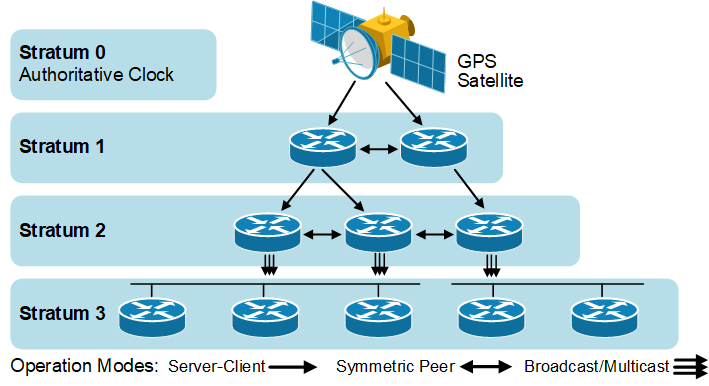
- Stratum 0 - primary time source: atomic clocks, GPS receivers (not directly on the network)
- Stratum 1 - directly connected to a stratum 0 device via serial or PPS
- Stratum 2 - references a stratum 1 server over NTP
- Stratum 3 - references a stratum 2 server over NTP
- (And so on - accuracy decreases with each hop)
NTP can function as:
- Client - acquires time from a server or peer
- Server - provides time to clients
- Peer - synchronizes with other peers regardless of defined servers
NTP Applications
Section titled “NTP Applications”| Application | Config file | Best for |
|---|---|---|
ntpd (ntp) | /etc/ntp.conf | Full-featured; traditional |
chronyd | /etc/chrony.conf | Laptops, VMs, intermittent connectivity |
systemd-timesyncd | /etc/systemd/timesyncd.conf | Simple SNTP client; sufficient for most clients |
timedatectl - Unified Time Control
Section titled “timedatectl - Unified Time Control”timedatectl # show time, timezone, NTP status# Local time: Sun 2023-03-05 16:13:50 UTC# Universal time: Sun 2023-03-05 16:13:50 UTC# RTC time: Sun 2023-03-05 16:13:50# Time zone: Etc/UTC (UTC, +0000)# System clock synchronized: yes# NTP service: active# RTC in local TZ: no
timedatectl list-timezones | grep Asiasudo timedatectl set-timezone Asia/Kolkatasudo timedatectl set-ntp true # enable NTP syncConfiguring chrony (Recommended)
Section titled “Configuring chrony (Recommended)”chrony is better than ntpd for environments with intermittent connectivity (laptops, VMs, containers).
sudo systemctl enable --now chronydchronyc tracking # current sync status and offsetchronyc sources -v # time sources with accuracy infochronyc makestep # force immediate time correction/etc/chrony.conf:
server 0.pool.ntp.org iburstserver 1.pool.ntp.org iburstserver 2.pool.ntp.org iburstserver 3.pool.ntp.org iburstConfiguring ntpd (Server Setup)
Section titled “Configuring ntpd (Server Setup)”For running your own NTP server:
/etc/ntp.conf - client pool:
driftfile /var/lib/ntp/ntp.driftpool 0.pool.ntp.orgpool 1.pool.ntp.orgpool 2.pool.ntp.orgpool 3.pool.ntp.org/etc/ntp.conf - access control:
# Default policy: deny all modification/queriesrestrict default nopeer nomodify notrap noquery# Allow a specific subnetrestrict 192.168.1.0 mask 255.255.255.0 nopeer nomodify notrap# Unrestrict localhostrestrict 127.0.0.1/etc/ntp.conf - peer and self-as-source declarations:
peer 128.100.49.12            # peer with another NTP serverpeer 192.168.0.1
# Declare self as stratum 10 (local clock fallback)server 127.127.1.0fudge 127.127.1.0 stratum 10