
Docker Containers
-
A Docker container is a running instance of a Docker image. It is an isolated process (or group of processes) running on the host kernel, with its own filesystem, network, and process tree.
-
Containers are ephemeral by default - data written to a container’s R/W layer is lost when the container is deleted (
docker rm). However, stopping a container (docker stop) preserves the R/W layer - restarting it restores the container to exactly the state it was in when stopped. Use volumes or bind mounts to persist data beyond the container’s lifetime. -
Containers are immutable - the underlying image layers are read-only and cannot be changed at runtime. Any writes go only to the container’s thin ephemeral writable layer, leaving the image itself untouched. To change what’s in the image, you build a new one.
-
Containers are designed to be stateless - they should not depend on data stored locally inside the container. State (databases, uploads, session data) belongs outside the container in volumes, external databases, or object storage. This is what makes containers portable and horizontally scalable.
-
Multiple containers can be created from the same image simultaneously - each gets its own isolated writable layer. The image is read-only in this relationship, but each container is read-write.
-
Containers are built around a single responsibility - one primary process or concern per container. In a microservice architecture, a web app with auth, catalogue, and store features would run as four separate containers, each independently deployable and scalable.
Container Lifecycle
Section titled “Container Lifecycle”docker pull → docker create → docker start → [running] → docker stop → docker rm ↑ docker restart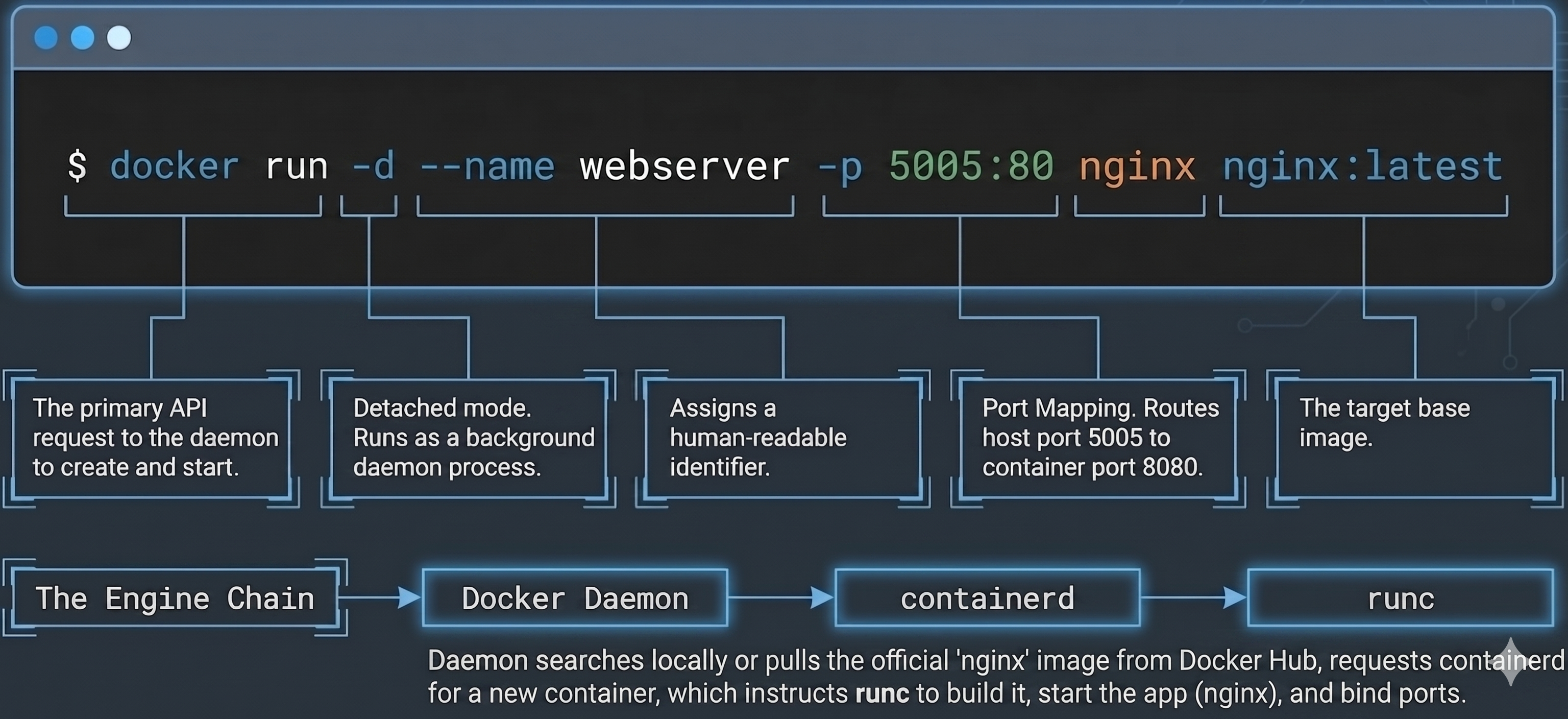
# Pull an image and run a container (combined)docker run nginx                          # Foreground, blocks terminaldocker run -d nginx                       # Detached (background)docker run -d --name my-nginx nginx       # Named containerdocker run --rm nginx                     # Auto-remove container on exit (keeps things clean)
# Run interactively (get a shell - combine with --rm to avoid leaving shells behind)docker run -it --rm ubuntu bash
# Map ports: host:containerdocker run -d -p 8080:80 nginx            # Access nginx at localhost:8080
# Set environment variablesdocker run -d -e DB_HOST=db my-app
# List running containersdocker ps
# List all containers including stoppeddocker ps -a
# Stop a container (sends SIGTERM, waits 10s, then SIGKILL)docker stop my-nginx
# Force kill immediatelydocker kill my-nginx
# Remove a stopped containerdocker rm my-nginx
# Stop and remove in one stepdocker rm -f my-nginx
# Remove ALL stopped containers at oncedocker container prune
How Docker Resolves Container Startup
Section titled “How Docker Resolves Container Startup”When you run a container, Docker resolves the startup command from three possible sources, in this order:
| Source | Behavior | Overridable? |
|---|---|---|
ENTRYPOINT (image metadata) | The fixed executable Docker runs. CLI arguments are appended to it, not replacing it. | ❌ Only overridden with --entrypoint flag |
CMD (image metadata) | Default arguments or the default command. Completely replaced by any CLI argument. | ✅ Overridden by CLI arguments |
| CLI argument | Manually supplied at docker run. Required if the image defines neither ENTRYPOINT nor CMD. | - |
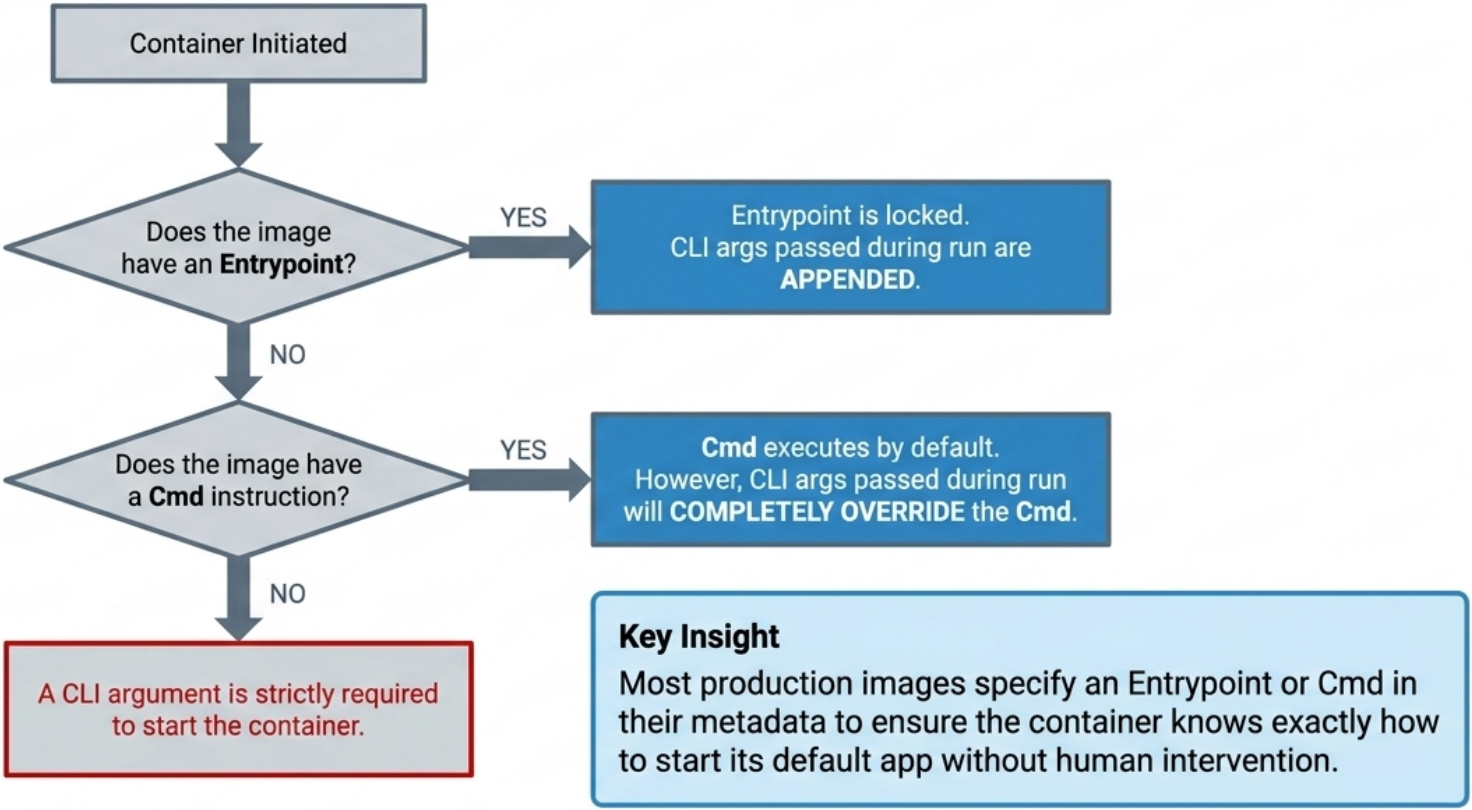
Most production-ready images define at least one so users don’t have to guess how to start the app.
# CMD-only image: CLI arg replaces CMD entirelydocker run ubuntu echo "hello"
# ENTRYPOINT image: CLI arg appends to the fixed executabledocker run nginx -g "daemon off;"
# Override ENTRYPOINT itself (rare - useful for debugging)docker run --entrypoint /bin/sh nginx
# Inspect the resolved startup command of any containerdocker inspect my-container --format '{{.Config.Entrypoint}}'docker inspect my-container --format '{{.Config.Cmd}}'Container States
Section titled “Container States”A container can be in one of six states at any point in its lifecycle:
| State | What it means |
|---|---|
| Created | Container has been created but never started |
| Running | Container has an active process executing |
| Restarting | Container is in the process of being restarted |
| Paused | All processes suspended via docker pause (cgroup freezer) |
| Removing | Container is being deleted |
| Exited | All processes have exited. Also the state for a container that was created but never started |
# View current state of all containers:docker ps -a --format "table {{.Names}}\t{{.Status}}"Restart Policies
Section titled “Restart Policies”By default, Docker never restarts a container that exits. Use the --restart flag at creation time to change this:
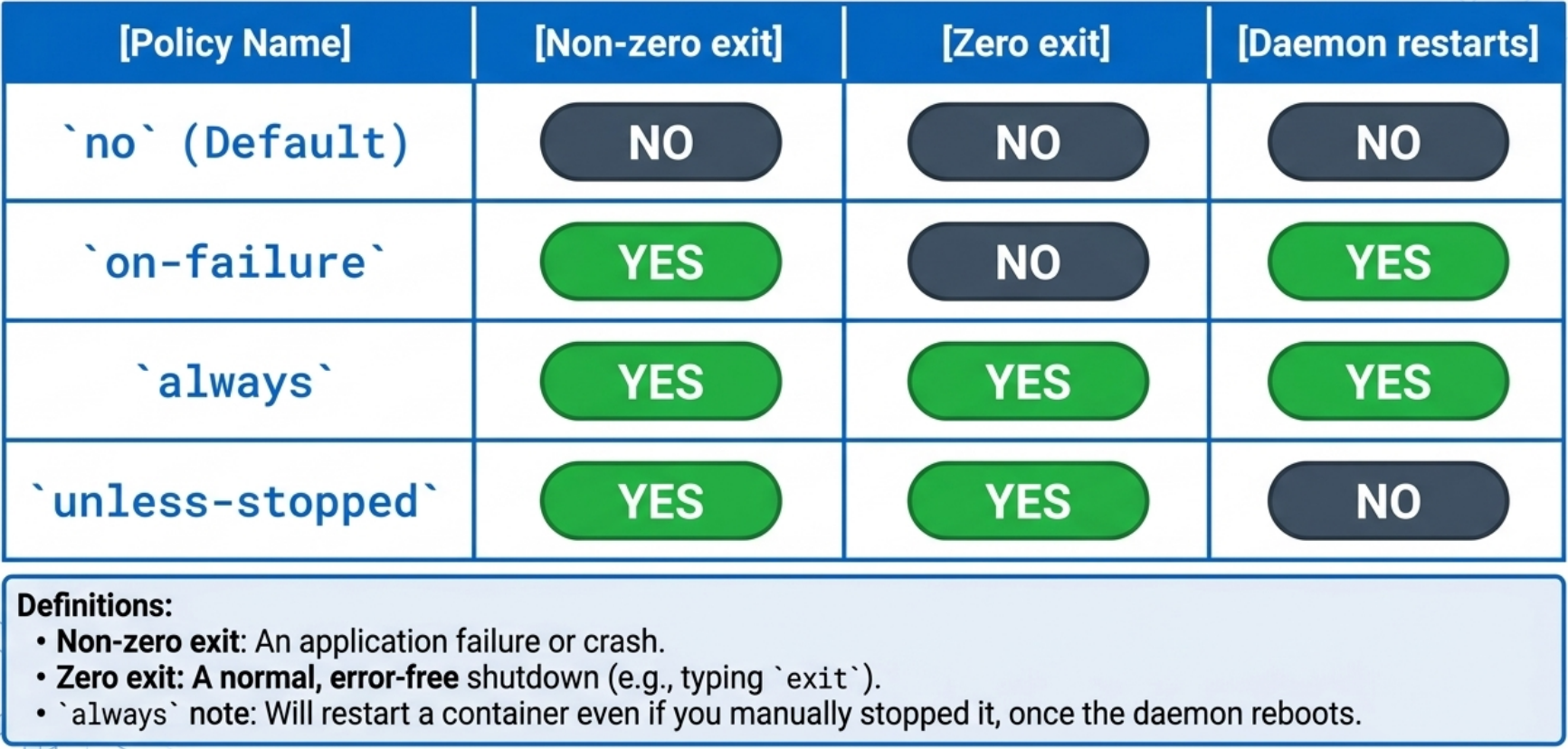
| Policy | Flag | Behavior |
|---|---|---|
| No restart | --restart no | Default - container stays exited |
| On failure | --restart on-failure | Restarts only if the container exits with a non-zero code |
| On failure with limit | --restart on-failure:5 | Same, but stops retrying after 5 attempts |
| Always | --restart always | Restarts regardless of exit code, including on Docker daemon startup |
| Unless stopped | --restart unless-stopped | Like always, but won’t restart if you manually stopped it |
always vs unless-stopped on daemon restart - the key difference:
- If you run
docker stop my-app(a manual stop) and then the Docker daemon restarts (host reboot, Docker Desktop update),alwayswill restartmy-appautomatically.unless-stoppedwill not. - Use
unless-stoppedfor services that should recover from crashes but respect your manual stops. Usealwaysfor critical infrastructure that must run unconditionally.
When a restart policy triggers, Docker brings the same container back (not a new one). Verify recovery attempts with:
docker inspect my-app --format '{{.RestartCount}}'# Run a container that restarts on failure, up to 5 times:docker run -d --restart on-failure:5 my-app
# Run a container that always restarts (typical for long-running services):docker run -d --restart always nginxExponential Backoff
Section titled “Exponential Backoff”Docker does not restart containers immediately on failure - it uses an exponential backoff strategy to avoid hammering a system in a crash loop.

Each successive restart attempt doubles the wait time from the previous attempt:
| Restart attempt | Wait before retry |
|---|---|
| 1st | 1 second |
| 2nd | 2 seconds |
| 3rd | 4 seconds |
| 4th | 8 seconds |
| 5th+ | Continues doubling… |
This is a standard service-restoration technique - it limits the blast radius of a misbehaving container while still attempting recovery automatically.
Inspecting a Running Container
Section titled “Inspecting a Running Container”docker exec runs commands inside a running container in two modes:
- Interactive (
-itflags) - connects your local terminal to a shell inside the container, behaving like an SSH session. Your shell prompt changes to reflect the container context. - Remote execution (no
-it) - sends a command to the container and prints the output to your local terminal without opening an interactive session.
# View container logsdocker logs my-nginxdocker logs -f my-nginx           # Follow (tail -f equivalent)docker logs --tail 50 my-nginx    # Last 50 lines
# Interactive shell inside the containerdocker exec -it my-nginx bash     # or 'sh' if bash isn't installed
# Remote execution - output returned to your local terminaldocker exec my-nginx ls /etc/nginx
# View resource usage (CPU, memory, network)docker stats
# Inspect container metadata (IP, mounts, env vars, etc.)docker inspect my-nginxContainer Processes
Section titled “Container Processes”Most containers run a single main process, which is always assigned PID 1 inside the container’s PID namespace. You can inspect running processes from inside an exec session or remotely:
# View processes remotely (without opening an interactive shell)docker exec my-nginx ps
# From inside an interactive session you'll typically see:# PID 1 - the main app process (e.g., nginx)# PID N - the shell you're connected to (bash / sh)# PID N+1 - the ps command itself (exits immediately)# Once you exit, the shell process terminates - only PID 1 remains.docker attach and Safe Detaching
Section titled “docker attach and Safe Detaching”docker attach is different from docker exec - it connects your terminal directly to the container’s main process (PID 1), rather than spawning a new process:
# Reconnect your terminal to a running container's main processdocker attach my-nginx
# If the container was stopped, restart it first then attachdocker restart my-containerdocker attach my-containerdocker inspect in Depth
Section titled “docker inspect in Depth”docker inspect returns the full runtime and configuration metadata for a container or an image as JSON.
Against a container - key fields to know:
| Field | What it tells you |
|---|---|
State.Status | Current state: running, exited, paused, etc. |
Name | Container name |
HostConfig.PortBindings | How container ports map to host ports |
HostConfig.RestartPolicy | The configured restart policy and retry count |
Config.Image | The image the container was started from |
Config.Entrypoint | The exact command that runs on every start |
Config.Env | Environment variables passed to the container |
Mounts | Volumes and bind mounts attached |
RestartCount | Number of times the container has been restarted by its restart policy |
Against an image - useful for verifying what containers will inherit:
# Inspect a containerdocker inspect my-nginx
# Inspect an image (verify Entrypoint, WorkingDir before running)docker inspect nginx:latest
# Targeted extraction with --format (Go template)docker inspect my-nginx --format '{{.State.Status}}'docker inspect my-nginx --format '{{.HostConfig.PortBindings}}'docker inspect my-nginx --format '{{.Config.Entrypoint}}'
Docker Debug (Slim Image Debugging)
Section titled “Docker Debug (Slim Image Debugging)”Because production images are kept minimal, they often lack shells, curl, vim, and other diagnostic tools. Docker Debug solves this without modifying the image:
- Attaches a shell to any running container and mounts a hidden
/nixtoolbox directory pre-loaded with debugging tools. The toolbox is invisible to the container itself and removed automatically when you exit. - Works on running containers (changes to the filesystem take immediate effect and persist across stop/restart) and on images or stopped containers (a temporary read-write sandbox is created - all changes are discarded on exit).
- Includes an
installcommand to add any package from search.nixos.org into the toolbox without rebuilding the image. - Includes an
entrypointcommand to print, lint, and test an image or container’sENTRYPOINT/CMDinstructions before running.
# Debug a running containerdocker debug my-nginx
# Debug an image directly (sandbox mode - changes are discarded on exit)docker debug nginx:latest
# Inside the debug shell, install a missing toolinstall nslookupContainer Filesystem
Section titled “Container Filesystem”-
Container filesystem is built from the image’s read-only layers + a thin read-write layer on top.
-
Any file modifications during runtime go into the writable layer and are scoped to that container instance.
-
Changes are not reflected in the image. To persist changes across container deletions: mount a volume or rebuild the image.
Terminal window # Copy files into/out of a containerdocker cp my-nginx:/etc/nginx/nginx.conf ./nginx.confdocker cp ./nginx.conf my-nginx:/etc/nginx/nginx.conf# See what changed from the base image (A=added, C=changed, D=deleted)docker diff my-nginx
Building Environment-Agnostic Containers
Section titled “Building Environment-Agnostic Containers”Much of the maintenance burden of running software comes from environment specializations - hardcoded paths, deployment-specific checks baked into config, or data tied to a specific host. Docker provides three features specifically designed to minimize these:
| Feature | How it helps |
|---|---|
| Read-only filesystem | Prevents the container’s files from being modified at runtime, eliminating one source of environment drift. Also limits the damage an attacker can do. |
| Environment variable injection | Externalizes configuration from the image - the same image runs in dev, staging, and production with different values passed in at runtime. |
| Volumes | Keeps persistent data outside the container, so the container itself stays stateless and replaceable. |
# Run a container with a read-only root filesystem:docker run --read-only nginx
# Override specific paths that must be writable (e.g. tmp):docker run --read-only --tmpfs /tmp nginx
# Inject environment variables at runtime:docker run -e DB_HOST=prod-db -e DB_PORT=5432 my-app
# Load env vars from a file (keeps secrets out of shell history):docker run --env-file .env my-appCommon Gotchas
Section titled “Common Gotchas”- Containers don’t start after
docker run: Checkdocker ps -afor the exit status, thendocker logs <container>for the error. The most common cause is the ENTRYPOINT/CMD crashing immediately. - Port not accessible: Verify you used
-p host:containerand the container is actually running (docker ps, notdocker ps -a). - Data lost after
docker rm: Expected. Mount a volume if you need persistence. docker stopis slow: The app isn’t handlingSIGTERM. Fix signal handling in your app or Dockerfile (use exec form forCMD).- Container can’t reach the internet: DNS inside containers defaults to
8.8.8.8. Custom DNS servers on the host don’t automatically apply inside containers.