
Text Editors
Introduction
Section titled “Introduction”Linux provides text editors ranging from beginner-friendly to extremely powerful:
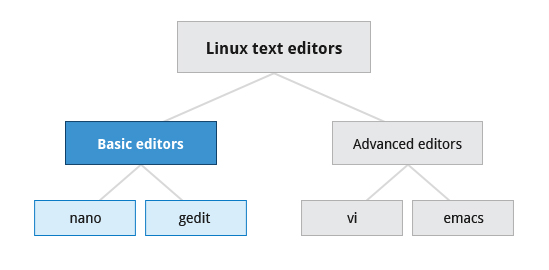
| Editor | Type | Best for |
|---|---|---|
nano | Terminal | Quick edits, beginners |
gedit | GUI | Desktop users who want Notepad-like simplicity |
vim / vi | Terminal | Full-featured editing, ubiquitous on servers |
emacs | Terminal + GUI | Programmers, extensible to an IDE |
nano - Simple Terminal Editor
Section titled “nano - Simple Terminal Editor”nano is the easiest entry point to terminal editing. It shows a shortcut bar at the bottom of the screen - no modes to remember.
nano filename # open (or create) a fileEssential shortcuts:
| Shortcut | Action |
|---|---|
CTRL-G | Display help |
CTRL-O | Write (save) the file |
CTRL-X | Exit (prompts to save if unsaved changes) |
CTRL-R | Insert contents from another file |
CTRL-K | Cut line |
CTRL-U | Paste |
CTRL-W | Search |
CTRL-C | Show cursor position (line:column) |
gedit - Graphical Editor
Section titled “gedit - Graphical Editor”gedit is the GNOME text editor - similar to Notepad on Windows. It requires a graphical desktop environment and cannot run in a headless terminal session.
gedit filename # open file; creates it if it doesn't existGood for quick edits when you’re on a desktop. Not available over SSH unless X forwarding is configured.
vi / vim - The Ubiquitous Editor
Section titled “vi / vim - The Ubiquitous Editor”vim (Vi IMproved) is the enhanced version of the classic vi. It’s installed on virtually every Linux/Unix system - if you only learn one terminal editor, make it vim.
Modal Editing
Section titled “Modal Editing”vi uses modes - the same key does different things depending on the current mode:
| Mode | How to enter | Purpose |
|---|---|---|
| Command | Default (press Esc) | Navigate, delete, copy, issue commands |
| Insert | Press i | Type and edit text (-- INSERT -- shown at bottom) |
| Line | Press : | File commands (save, quit, substitute) |
Opening and Saving Files
Section titled “Opening and Saving Files”| Command | Usage |
|---|---|
vi myfile | Open myfile |
vi -r myfile | Open in recovery mode after a crash |
:r file2 | Insert file2 at current position |
:w | Write (save) the current file |
:w myfile | Write to myfile |
:w! file2 | Force overwrite file2 |
:x or :wq | Save and quit |
:q | Quit (fails if unsaved changes) |
:q! | Force quit without saving |
Navigation
Section titled “Navigation”| Key | Movement |
|---|---|
Arrow keys / hjkl | Left, down, up, right |
0 | Beginning of line |
$ | End of line |
w | Next word |
b | Previous word |
gg or :0 | Beginning of file |
G or :$ | End of file |
:n or nG | Go to line n |
CTRL-F / Page Down | Forward one page |
CTRL-B / Page Up | Back one page |
^l | Refresh and center screen |
Searching
Section titled “Searching”| Command | Action |
|---|---|
/pattern | Search forward |
?pattern | Search backward |
n | Next match |
N | Previous match |
Text Operations
Section titled “Text Operations”| Command | Action |
|---|---|
dd | Cut (delete) current line |
yy | Copy (yank) current line |
p | Paste after cursor |
u | Undo |
CTRL-R | Redo |
x | Delete character under cursor |
dw | Delete word |
External Commands in vi
Section titled “External Commands in vi”You can run shell commands without leaving vi:
:!wc % " Run wc on the current file (% = current filename):!ls /tmp " Run ls /tmp and show output:sh " Open a subshell (exit to return to vi)emacs - The Extensible Editor
Section titled “emacs - The Extensible Editor”emacs is a powerful editor that can be extended with Lisp into a development environment. It uses CTRL and Meta (Alt or Esc) key combinations instead of modes.
emacs myfile # open in terminalemacs & # open GUI version in backgroundEssential emacs Commands
Section titled “Essential emacs Commands”| Key | Action |
|---|---|
emacs myfile | Open a file |
CTRL-x i | Insert (another) file at cursor position |
CTRL-x s | Save all modified files |
CTRL-x CTRL-s | Save the current file |
CTRL-x CTRL-w | Write to a new filename |
CTRL-x CTRL-c | Exit (prompts to save unsaved files) |
CTRL-/ | Undo |
CTRL-g | Cancel current operation |
CTRL-s | Search forward |
CTRL-r | Search backward |
META-x | Run an emacs command by name |
Quick Comparison
Section titled “Quick Comparison”| Feature | nano | vim | emacs |
|---|---|---|---|
| Learning curve | Low | Medium | High |
| Modal editing | No | Yes | No |
| Ubiquity on servers | High | Very high | Medium |
| Scripting / macros | Basic | VimScript | Elisp |
| Best workflow | One-off edits | Everything | Power users |