
Process Management
What Is a Process?
Section titled “What Is a Process?”A process is an instance of one or more related tasks (threads) executing on your computer. It is not the same as a program or a command - a single command may actually start several processes simultaneously.
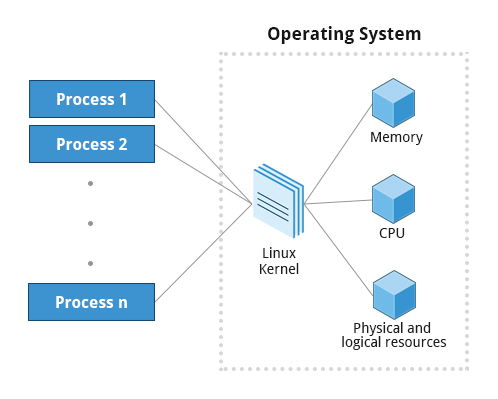
Key properties of every process:
- Has a PID (Process ID), PPID (Parent PID), and PGID (Process Group ID)
- Has its own program code, data, variables, file descriptors, and environment
- Is isolated in its own user space to protect it from other processes
- Cannot access hardware directly - must use system calls (the fundamental interface between an application and the kernel)
- Is preemptively scheduled - only the kernel can preempt a process; processes cannot preempt each other
The maximum PID is 32768 (a 16-bit number). You can raise this limit via /proc/sys/kernel/pid_max for high-load servers. When the system reaches pid_max, PIDs wrap around and start again from 300.
Process Context and Context Switching
Section titled “Process Context and Context Switching”Every process, at any moment, can take a snapshot of itself: its CPU registers, where it is in the program, what is in its memory, open files. This snapshot is the context of the process.
Because processes are constantly scheduled in and out - either sharing CPU time with others, or sleeping while waiting for I/O or user input - the kernel must be able to:
- Save the entire context when swapping a process out
- Restore the exact context when resuming execution
This mechanism is called context switching and is the core of how multitasking works.
User and Group IDs
Section titled “User and Group IDs”| ID | Description |
|---|---|
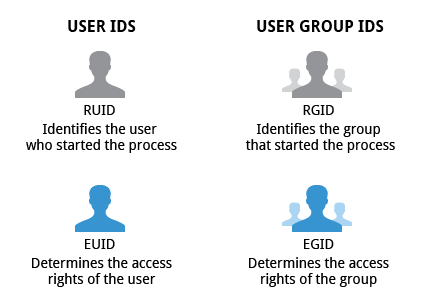
| RUID (Real User ID) | Identifies the user who started the process |
| EUID (Effective User ID) | Determines actual access rights; may differ from RUID |
| RGID (Real Group ID) | Identifies the group of the process owner |
| EGID (Effective Group ID) | Determines actual group-level access rights |
setuid Programs
Section titled “setuid Programs”Programs marked with the s execute bit run with the user ID of the file owner, not the user who launched them. These are setuid programs.
Example: passwd is a setuid program owned by root. Any user can run it, and the process runs as root to write to /etc/passwd and /etc/shadow. This is intentional - but setuid programs owned by root are a potential security risk and should be audited carefully.
Process Types
Section titled “Process Types”| Type | Description | Examples |
|---|---|---|
| Interactive | Started by a user (CLI or GUI); needs a terminal | bash, firefox, top |
| Batch | Automated; disconnected from terminal; run in FIFO queue | updatedb, ldconfig |
| Daemon | Runs continuously in background; no controlling terminal | httpd, sshd, libvirtd |
| Thread | Lightweight task under a main process; shares memory with it; can end independently | firefox, gnome-terminal-server |
| Kernel Thread | Internal kernel tasks; users cannot control them | kthreadd, migration, ksoftirqd |
Daemons in Detail
Section titled “Daemons in Detail”Daemons are background processes whose sole purpose is to provide services to users or the system:
- Only operate when needed - efficient by design
- Many start at boot; others start on demand (
xinetd, socket-activated services) - Names often end in
d:httpd,sshd,crond,systemd-udevd - May respond to external events (
udevd) or elapsed time (crond) - Have no controlling terminal and no standard input/output
- Kernel-created processes appear with names in square brackets
[kworker/0:0]inpsoutput
Process States
Section titled “Process States”| State | What it means |
|---|---|
| Running (R) | Currently executing on a CPU, or in the run queue ready to execute |
| Sleeping (S/D) | Waiting for an event (I/O, signal, timer); S = interruptible, D = uninterruptible |
| Stopped (T) | Execution suspended - e.g. by CTRL-Z or a debugger (SIGSTOP) |
| Zombie (Z) | Finished execution but parent hasn’t called wait() yet; holds a process table slot but no resources |
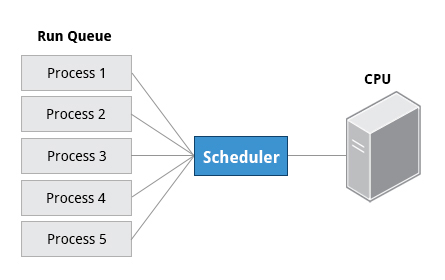
The kernel scheduler constantly shifts processes on and off CPUs, sharing time according to priority, how much time a process needs, and how much it has already received.
- Runnable processes live on the run queue (one per CPU core)
- Sleeping processes live on the wait queue
- Zombie processes are cleaned up when the parent calls
wait()or when the parent exits
Process and Thread IDs
Section titled “Process and Thread IDs”| ID Type | Description |
|---|---|
| PID | Unique process ID; assigned sequentially at creation |
| PPID | Parent Process ID; if parent dies, orphans are adopted by init (PID 1) or kthreadd (PID 2) |
| TID | Thread ID; same as PID for single-threaded processes; each thread in a multi-threaded process gets a unique TID |
PID 1 is always init (or systemd on modern systems). Kernel threads appear early in the PID sequence, wrapped in [brackets] in ps output.
Execution Modes: User vs Kernel
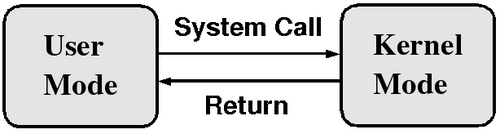
Section titled “Execution Modes: User vs Kernel”Processes run in one of two CPU modes - enforced by hardware, not software:
| Mode | Access | Intel Ring |
|---|---|---|
| User mode | Limited; cannot directly access hardware or other processes’ memory | Ring 3 |
| Kernel mode | Full access to hardware, memory, all resources | Ring 0 |
- Each core has its own independent execution mode
- A process starts in user mode; when it needs a privileged operation, it makes a system call, which triggers a context switch to kernel mode
- After the system call completes, execution returns to user mode
- Application code never runs in kernel mode - only the kernel code of the system call does
- Kernel mode is also used for hardware interrupts, scheduling routines, and other management tasks
Creating Processes: Fork and Exec
Section titled “Creating Processes: Fork and Exec”All processes in Linux are created via fork and exec:
- fork: Creates an exact copy (child) of the current process. The original parent continues running.
- exec: Replaces the child’s address space with a new program. The child’s PID is preserved.
The combination fork + exec is the standard mechanism for launching programs.
What Happens When You Run a Command in Bash
Section titled “What Happens When You Run a Command in Bash”- A new process is forked from your shell
- A
waitsystem call puts the parent shell to sleep - The program is loaded into the child’s space via exec (replacing bash)
- The command runs to completion and the child exits
- The shell is woken by the child’s death and prints a new prompt
For background commands (append &): the shell skips the wait call and immediately returns a new prompt while the child runs in parallel.
For shell built-ins (echo, cd, kill): neither fork nor exec is issued - they run directly within the shell process.
Resource Limits with ulimit
Section titled “Resource Limits with ulimit”ulimit is a bash built-in that displays or sets per-process resource limits. Admins use it to:
- Restrict: prevent a runaway process from consuming all memory, open files, or CPU time
- Expand: allow a server to handle more than the default 1024 open file descriptors
ulimit -a # show all limits for current shellulimit -n 1600 # set max open files to 1600 (current session only)ulimit -H -n # show hard limit for open filesulimit -S -n # show soft limit for open filesHard vs Soft Limits
Section titled “Hard vs Soft Limits”| Limit | Who controls it | Description |
|---|---|---|
| Hard | Root only | Maximum ceiling a user can raise to |
| Soft | Any user | Current active limit; can be raised up to hard limit |
Changes made with ulimit only affect the current shell session. To persist limits across reboots for all users, edit /etc/security/limits.conf.
Process Priorities and Nice Values
Section titled “Process Priorities and Nice Values”When multiple processes compete for CPU time, the scheduler chooses based on priority. Linux uses a nice value (niceness) to express priority:
- Range: -20 (highest priority) to +19 (lowest priority)
- Default nice value for new processes: 0
- Lower nice = process gets more CPU time; it is less “nice” to other processes
- Higher nice = process yields to others; it is more “polite”
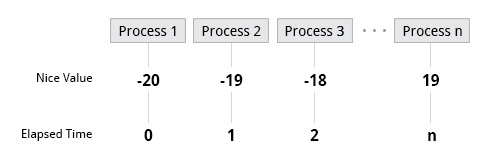
nice -n 10 myprog           # run myprog at nice value 10 (low priority)nice -n 19 myprog           # run at lowest prioritynice -n -20 myprog          # run at highest priority (requires root)
renice +5 -p 20003 # raise nice value of running PID 20003 to 5renice -5 -p 20003 # lower nice value (requires root)Load Averages
Section titled “Load Averages”The load average measures how many processes are competing for CPU over time. It counts:
- Processes actively executing on a CPU
- Processes runnable but waiting for CPU time
- Processes in uninterruptible sleep (typically waiting for I/O)
uptime# 19:26:28 up 2 days, 12:08, 2 users, load average: 0.45, 0.17, 0.12The three numbers represent the 1-minute, 5-minute, and 15-minute averages:
| Value | Meaning (single CPU) |
|---|---|
< 1.0 | System has spare capacity |
= 1.0 | Fully utilized but not overloaded |
> 1.0 | Overloaded - processes waiting for CPU |
For multi-core systems, divide by the number of cores. A load of 4.00 on a 4-core system = 100% utilized.
A spike in the 1-minute average is usually harmless (startup burst). A sustained high value in the 5- and 15-minute averages warrants investigation.
# Check load averageuptimewtop # shown on the first lineBackground and Foreground Jobs
Section titled “Background and Foreground Jobs”By default, commands run in the foreground - your shell waits for them to finish.
long_command &              # run in background, shell returns immediatelyjobs                        # list background jobs in this shell sessionjobs -l                     # also shows PIDs
CTRL-Z                      # suspend the current foreground jobbg %1                       # resume job 1 in the backgroundfg %1                       # bring job 1 back to foregroundfg                          # bring most recent background job to foreground
CTRL-C # terminate the current foreground jobMonitoring Processes
Section titled “Monitoring Processes”The /proc Filesystem
Section titled “The /proc Filesystem”/proc is a virtual filesystem that exposes kernel data structures as files. Every active process gets a directory named after its PID:
/proc/1234/ - directory for process PID 1234/proc/1234/status - name, state, memory, UIDs/proc/1234/cmdline - command + arguments/proc/1234/fd/ - open file descriptors/proc/1234/maps - memory map/proc/self/ - always points to the current processTools Overview
Section titled “Tools Overview”| Tool | Purpose |
|---|---|
ps | Point-in-time snapshot of processes |
top | Live, auto-refreshing process view |
htop | Enhanced top with colors, mouse, per-core bars |
pstree | Process hierarchy as a tree |
uptime | System uptime + load averages |
mpstat | Per-CPU utilization |
iostat | CPU + block device I/O statistics |
sar | Collect and report system activity over time |
strace | Trace system calls made by a process |
numastat | NUMA memory allocation statistics |
ps Command
Section titled “ps Command”ps takes a snapshot of currently running processes. Two option styles exist from different UNIX lineages:
# System V style (with dashes)ps -ef                      # all processes, full detailps -u username              # processes for one userps -eLf                     # one line per thread
# BSD style (no dashes)ps aux                      # all processes, all usersps axo pid,ppid,stat,comm   # custom columnsps --sort=-%cpu | head      # top CPU consumersps --sort=-%mem | head      # top memory consumers
# Target specific commandps -C nginx                 # processes named 'nginx'
pstree
Section titled “pstree”pstree # tree of all processespstree -p # include PIDspstree username # only show processes from a userRepeated entries are collapsed; threads appear in {curly braces}.
top - Live Process Viewer
Section titled “top - Live Process Viewer”top refreshes every 2 seconds. Press q to quit.
Understanding the top header:
| Line | Content |
|---|---|
| Line 1 | Uptime, logged-in users, load averages (1m/5m/15m) |
| Line 2 | Process counts: total, running, sleeping, stopped, zombie |
| Line 3 | CPU time split: us (user), sy (kernel), ni (nice), id (idle), wa (I/O wait), hi (hardware IRQ), si (soft IRQ), st (steal) |
| Line 4 | RAM: total, free, used, buff/cache |
| Line 5 | Swap: total, free, used, available |
High wa (I/O wait) with high load = disk bottleneck. High us = CPU-bound application. High sy = kernel overhead.
Process columns:
| Column | Meaning |
|---|---|
PID | Process ID |
USER | Owner |
PR | Priority (kernel value) |
NI | Nice value |
VIRT | Total virtual memory claimed |
RES | Resident (physical) memory used |
SHR | Shared memory |
S | State (R/S/D/Z/T) |
%CPU | CPU usage since last refresh |
%MEM | Physical memory percentage |
TIME+ | Total CPU time consumed |
COMMAND | Process name/command |
Interactive keys in top:
| Key | Action |
|---|---|
k | Kill a process (prompt for PID and signal) |
r | Renice a process |
f | Field/column configuration |
o | Change sort order |
A | Sort by top resource consumer |
m | Toggle memory display |
t | Toggle CPU summary display |
1 | Toggle per-core CPU breakdown |
q | Quit |
Signals and Process Termination
Section titled “Signals and Process Termination”Signals are software interrupts sent to processes. The kernel, users, and other processes can send them.
kill -l                     # list all signals
# Terminate a processkill PID                    # sends SIGTERM (15) - polite request to exitkill -9 PID                 # sends SIGKILL - cannot be caught or ignoredkill -SIGTERM PID           # same as kill PID
# Other useful signalskill -1 PID                 # SIGHUP - reload config (many daemons)kill -2 PID                 # SIGINT  - same as CTRL-Ckill -15 PID                # SIGTERM - graceful terminationkill -19 PID                # SIGSTOP - pause (same as CTRL-Z, cannot be ignored)kill -18 PID                # SIGCONT - resume stopped process
# By namekillall nginx               # send SIGTERM to all processes named 'nginx'pkill -9 -u username        # kill all processes by user