
Printing
Printing on Linux
Section titled “Printing on Linux”- Printing itself requires software that converts information from the application you are using to a language your printer can understand.
- The Linux standard for printing software is the Common UNIX Printing System (CUPS).
CUPS (Common UNIX Printing System)
Section titled “CUPS (Common UNIX Printing System)”- It converts page descriptions produced by your application (put a paragraph here, draw a line there, and so forth) and then sends the information to the printer. It acts as a print server for both local and network printers.
- Printers manufactured by different companies may use their own particular print languages and formats.
- CUPS uses a modular printing system which accommodates a wide variety of printers and also processes various data formats.
How Does CUPS Work?
Section titled “How Does CUPS Work?”CUPS carries out the printing process with the help of its various components:
-
Configuration files
-
Scheduler
-
Job files
-
Log files
-
Filter
-
Printer drivers
-
Backend
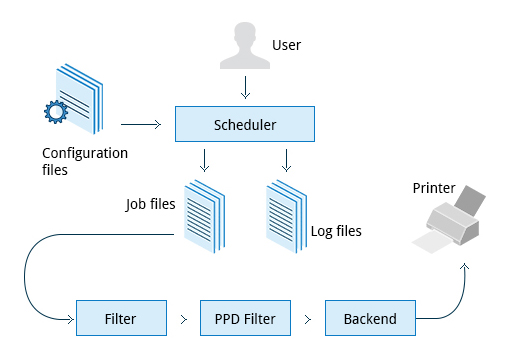
Configuration Files
Section titled “Configuration Files”- The print scheduler reads server settings from several configuration files, the two most important of which are
cupsd.confandprinters.conf. These and all other CUPS related configuration files are stored under the/etc/cups/directory. cupsd.confis where most system-wide settings are located; it does not contain any printer-specific details. Most of the settings available in this file relate to network security, i.e. which systems can access CUPS network capabilities, how printers are advertised on the local network, what management features are offered, and so on.printers.confis where you will find the printer-specific settings. For every printer connected to the system, a corresponding section describes the printer’s status and capabilities. This file is generated or modified only after adding a printer to the system, and should not be modified by hand.
Scheduler
Section titled “Scheduler”- CUPS is designed around a print scheduler that manages print jobs, handles administrative commands, allows users to query the printer status, and manages the flow of data through all CUPS components.
Job Files
Section titled “Job Files”- CUPS stores print requests as files under the
/var/spool/cupsdirectory (these can actually be accessed before a document is sent to a printer). - Data files are prefixed with the letter
dwhile control files are prefixed with the letterc. - After a printer successfully handles a job, data files are automatically removed. These data files belong to what is commonly known as the print queue.

Log Files
Section titled “Log Files”-
Log files are placed in
/var/log/cupsand are used by the scheduler to record activities that have taken place. These files include access, error, and page records. -
To view what log files exist, type:
Terminal window sudo ls -l /var/log/cups

Filters, Printer Drivers, and Backends
Section titled “Filters, Printer Drivers, and Backends”- CUPS uses
filtersto convert job file formats to printable formats. - Printer drivers contain descriptions for currently connected and configured printers, and are usually stored under
/etc/cups/ppd/. - The print data is then sent to the printer through a filter, and via a backend that helps to locate devices connected to the system.
- So, in short, when you execute a print command, the scheduler validates the command and processes the print job, creating job files according to the settings specified in the configuration files. Simultaneously, the scheduler records activities in the log files. Job files are processed with the help of the filter, printer driver, and backend, and then sent to the printer.
Managing CUPS
Section titled “Managing CUPS”-
Assuming CUPS has been installed you’ll need to start and manage the CUPS daemon so that CUPS is ready for configuring a printer.
-
Managing the CUPS daemon is simple; all management features can be done with the
systemctlutility:Terminal window systemctl status cupssudo systemctl [enable|disable] cupssudo systemctl [start|stop|restart] cups
Printing Operations
Section titled “Printing Operations”Printing from the Command-Line Interface
Section titled “Printing from the Command-Line Interface”- CUPS provides two command-line interfaces, descended from the System V and BSD flavors of UNIX. This means that you can use either
lp(System V) orlpr(BSD) to print. You can use these commands to print text, PostScript, PDF, and image files. - These commands are useful in cases where printing operations must be automated (from shell scripts, for instance, which contain multiple commands in one file).
lpis just a command line front-end to thelprutility that passes input tolpr.
Using lp
Section titled “Using lp”-
lpandlpraccept command line options that help you perform all operations that the GUI can accomplish.lpis typically used with a file name as an argument. -
lpoptionscan be used to set printer options and defaults. -
Each printer has a set of tags associated with it, such as the default number of copies and authentication requirements.
-
You can type
lpoptions helpto obtain a list of supported options. -
lpoptionscan also be used to set system-wide values, such as the default printer.Command Usage lp filenameTo print the file to default printer lp -d printer filenameTo print to a specific printer (useful if multiple printers are available) program | lporecho string | lpTo print the output of a program lp -n number filenameTo print multiple copies lpoptions -d printerTo set the default printer lpq -aTo show the queue status lpadminTo configure printer queues
Managing Print Jobs
Section titled “Managing Print Jobs”-
Command line print job management commands allow you to monitor the job state as well as managing the listing of all printers and checking their status, and canceling or moving print jobs to another printer.
Command Usage lpstat -p -dTo get a list of available printers, along with their status lpstat -aTo check the status of all connected printers, including job numbers cancel job-idTo cancel a print job lpmove job-id newprinterTo move a print job to new printer
Manipulating Postscript and PDF Files
Section titled “Manipulating Postscript and PDF Files”Working with PostScript and PDF
Section titled “Working with PostScript and PDF”- PostScript is a standard page description language.
- It effectively manages scaling of fonts and vector graphics to provide quality printouts. It is purely a text format that contains the data fed to a PostScript interpreter.
- Features of PostScript are:
- It can be used on any printer that is PostScript-compatible; i.e. any modern printer
- Any program that understands the PostScript specification can print to it
- Information about page appearance, etc. is embedded in the page.
- Postscript has been for the most part superseded by the PDF format (Portable Document Format) which produces far smaller files in a compressed format for which support has been integrated into many applications. However, one still has to deal with postscript documents, often as an intermediate format on the way to producing final documents.
Working with enscript
Section titled “Working with enscript”-
enscriptis a tool that is used to convert a text file to PostScript and other formats. -
It also supports Rich Text Format (RTF) and HyperText Markup Language (HTML).
-
For example, you can convert a text file to two columns (
-2) formatted PostScript using the command:Terminal window enscript -2 -r -p psfile.ps textfile.txt
-
-
This command will also rotate (
-r) the output to print so the width of the paper is greater than the height (aka landscape mode) thereby reducing the number of pages required for printing.Command Usage enscript -p psfile.ps textfile.txtConvert a text file to PostScript (saved to psfile.ps) enscript -n -p psfile.ps textfile.txtConvert a text file to n columns where n=1-9 (saved in psfile.ps) enscript textfile.txtPrint a text file directly to the default printer
Converting between PostScript and PDF
Section titled “Converting between PostScript and PDF”-
From time to time, you may need to convert files from one format to the other, and there are very simple utilities for accomplishing that task.
-
ps2pdfandpdf2psare part of theghostscriptpackage installed on or available on all Linux distributions. -
As an alternative, there are
pstopdfandpdftopswhich are usually part of thepopplerpackage, which may need to be added through your package manager. -
Another possibility is to use the very powerful
convertprogram, which is part of theImageMagickpackage.Command Usage pdf2ps file.pdfConverts file.pdf to file.ps ps2pdf file.psConverts file.ps to file.pdf pstopdf input.ps output.pdfConverts input.ps to output.pdf pdftops input.pdf output.psConverts input.pdf to output.ps convert input.ps output.pdfConverts input.ps to output.pdf convert input.pdf output.psConverts input.pdf to output.ps
Manipulating PDFs
Section titled “Manipulating PDFs”Common PDF manipulation tasks include:
- Merging/splitting/rotating PDF documents
- Repairing corrupted PDF pages
- Pulling single pages from a file
- Encrypting and decrypting PDF files
- Adding, updating, and exporting a PDF’s metadata
- Exporting bookmarks to a text file
- Filling out PDF forms.
In order to accomplish these tasks there are several programs available:
qpdf— widely available on Linux distributions and is very full-featured.pdftk— was once very popular but depends on an obsolete unmaintained package (libgcj) and a number of distributions have dropped it; thus we recommend avoiding it.ghostscript(often invoked usinggs) — widely available and well-maintained.
Using qpdf
Section titled “Using qpdf”| Command | Usage |
|---|---|
qpdf --empty --pages 1.pdf 2.pdf -- 12.pdf | Merge the two documents 1.pdf and 2.pdf. The output will be saved to 12.pdf. |
qpdf --empty --pages 1.pdf 1-2 -- new.pdf | Write only pages 1 and 2 of 1.pdf. The output will be saved to new.pdf. |
qpdf --rotate=+90:1 1.pdf 1r.pdf | Rotate page 1 of 1.pdf 90 degrees clockwise and save to 1r.pdf. |
qpdf --rotate=+90:1-z 1.pdf 1r-all.pdf | Rotate all pages of 1.pdf 90 degrees clockwise and save to 1r-all.pdf. |
qpdf --encrypt mypw mypw 128 -- public.pdf private.pdf | Encrypt with 128 bits public.pdf using as the passwd mypw with output as private.pdf. |
qpdf --decrypt --password=mypw private.pdf file-decrypted.pdf | Decrypt private.pdf with output as file-decrypted.pdf. |
Using pdftk
Section titled “Using pdftk”| Command | Usage |
|---|---|
pdftk 1.pdf 2.pdf cat output 12.pdf | Merge the two documents 1.pdf and 2.pdf. The output will be saved to 12.pdf. |
pdftk A=1.pdf cat A1-2 output new.pdf | Write only pages 1 and 2 of 1.pdf. The output will be saved to new.pdf. |
pdftk A=1.pdf cat A1-endright output new.pdf | Rotate all pages of 1.pdf 90 degrees clockwise and save result in new.pdf. |
pdftk public.pdf output private.pdf user_pw PROMPT | Apply a password to it using the user_pw option. |
Using Ghostscript
Section titled “Using Ghostscript”-
Ghostscript is widely available as an interpreter for the Postscript and PDF languages. The executable program associated with it is abbreviated to
gs.Command Usage gs -dBATCH -dNOPAUSE -q -sDEVICE=pdfwrite -sOutputFile=all.pdf file1.pdf file2.pdf file3.pdfCombine three PDF files into one gs -sDEVICE=pdfwrite -dNOPAUSE -dBATCH -dDOPDFMARKS=false -dFirstPage=10 -dLastPage=20 -sOutputFile=split.pdf file.pdfSplit pages 10 to 20 out of a PDF file
Additional Tools
Section titled “Additional Tools”pdfinfo— It can extract information about PDF files, especially when the files are very large or when a graphical interface is not available.flpsed— It can add data to a PostScript document. This tool is specifically useful for filling in forms or adding short comments into the document.pdfmod— It is a simple application that provides a graphical interface for modifying PDF documents. Using this tool, you can reorder, rotate, and remove pages; export images from a document; edit the title, subject, and author; add keywords; and combine documents using drag-and-drop action.
